import Image from "next/image";
ValPhone Text Screen
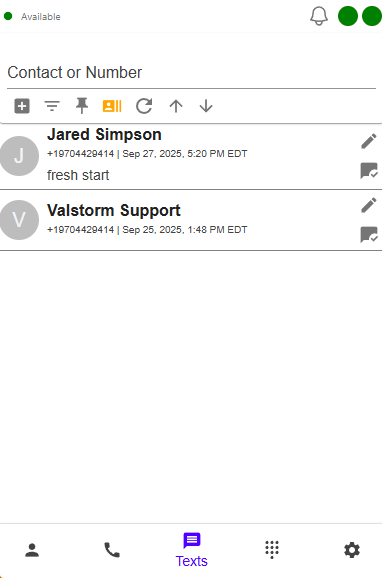
The text screen in ValPhone allows you to handle conversations in real time. It prioritizes unread messages to the top of the list.
- Most unread messages are at the top
- Then the last modified conversation, AKA the last conversation you sent or received a message in
- Then the rest of the conversations in order of last modified
Top Navigation
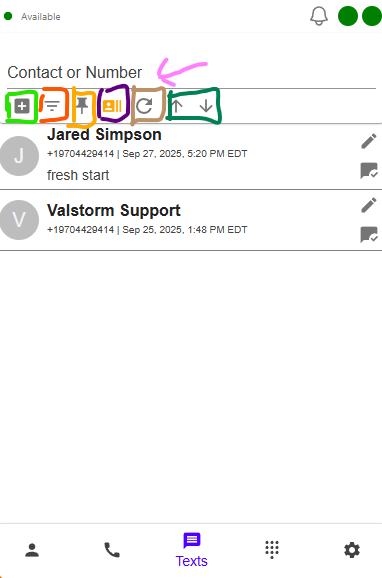
At the top of the screen, you have several utilities to help you manage your conversations. All of these have a tooltip that tells you what they do when you hover on them
- Search Bar: Search for conversations by contact name or phone number. This has the pink arrow
- New Conversation: Start a new conversation by clicking the plus icon. This has the green square
- Filters: Filter conversations by all convos, my conversations only, subscribed conversations, or unread only. More filters can be created. This has the Red square
- All Convos: Shows all conversations
- My Convos: Shows conversations you own
- Subscribed Convos: Shows conversations that you subscribe to. This means you received notifications about them, even if you don't own the conversation.
- Unread Only: Shows conversations with unread messages.
- Pin Filter: Allows you to mark the current filter as your default filter when you open the text screen. This has the orange square
- Default Filter: This returns you to the default filter, which is usually "All Convos" unless you have pinned a different filter. This has the purple square
- Refresh: This refreshes the conversation list based on your current filter. This has the brown square
- Scroll to Top or Bottom: This scrolls to the top or bottom of the conversation list. This has the green square
Conversation List
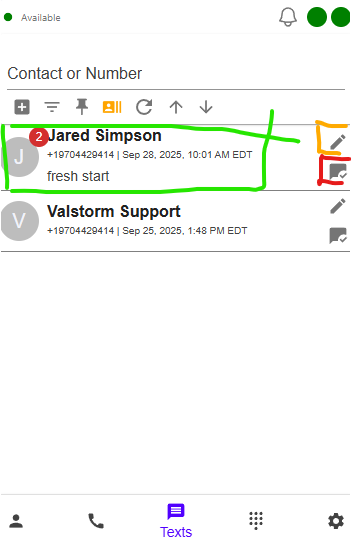
The conversation list is the part below the utility section that lists all the conversations by name. They indicate if there are any unread messages, which compnay phone they are communicating with and the last modified date.
- Unread Messages: If there are unread messages, a red dot will appear next to the converastion name with the number of unread messages
- Click to Enter Conversation: Click on a conversation to enter it and view the message history, or send messages
- Edit Conversation: Click the pencil icon to edit the conversation details, such as subscribing to it, changing the owner, or updating the tags (used for filtering)
- Mark as Read: Click the checkmark icon to mark all messages in the conversation as read. This will clear the notifications for everyone in your company.
Creating Conversations and Texting
Please refer to the How to Text for more information on creating conversations and texting.
