import Image from "next/image";
How to Subscribe to a Conversation
Subscribing to a conversation allows you to receive notifications for new messages in that conversation, even if you are not the owner. This is useful for keeping track of important conversations or those that require your attention.
Steps to Subscribe
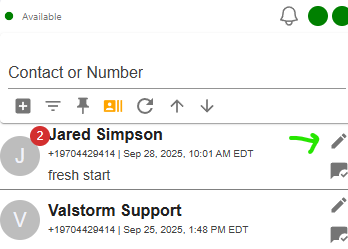
- Find the conversation: This can be done on the text screen or the messages section of a contact that you are viewing
- Edit a Conversation: Click the pencil icon to edit the conversation details
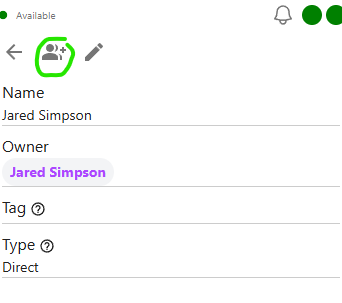
- Edit Subscribers: In the edit conversation modal, find the "Subscribers" button and click it
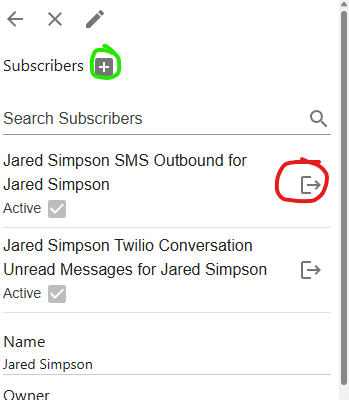
- Modify the Subscribers: You can now add or remove subscribers from the conversation. The circle in red will remove someone from the conversation. The Green circle will allow you to choose who to add to the conversation.
- Add Subscribers: After clicking the green circle, you can search for users in your company to add as subscribers. Click on their name to add them.
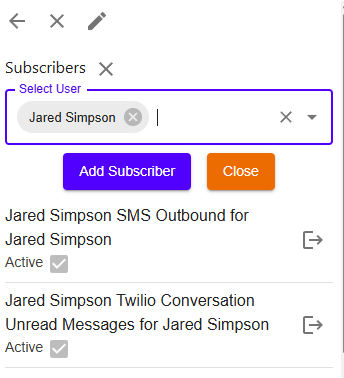
- Now click the Add Subscriber button to save them to the conversation.
- Exit: You can exit by clicking the back arrow to leave the conversation edit mode.