Troubleshooting
ValPhone Call Issues
Here are some common reasons a call can drop. The number one thing to know is if your internet is good enough to support calling.
You can google "speed test" then run it. Anything below 5 mbps is going to be problematic.
- You close the tab the phone is on. Accidents happen
- The client hangs up
- The phone is not connected (red icon top right)
- The call fails to dial, bad number
- The call fails to connect, common reasons include: Bad internet connection, bad connection to the phone provider (try again), clients phone blocking calls (variety of reasons)
- Least common is the phone provider network is down. It happens.
Unable to Login to ValPhone for Salesforce
It is highly likely that you are blocking third party cookies on your browser. For ValPhone to work in side of salesforce, it counts as a third party cookie.
To unblock third-party cookies, go to your browser's privacy settings and change the cookie preferences, often found under "Privacy and security" or "Site settings". The exact steps vary by browser, but generally involve finding the cookie settings and selecting an option like "Allow all cookies" or disabling "Block third-party cookies". You can also often allow specific sites to bypass the block.
Google Chrome
Desktop:
Click the three-dots menu > Settings > Privacy and security > Third-party cookies > Select Allow third-party cookies.
Mobile:
Tap the three-dots menu > Settings > Site settings > Cookies > Uncheck or toggle off "Block third-party cookies".
Safari
Desktop:
Click Safari > Preferences > Privacy > Uncheck "Prevent cross-site tracking" and "Block all cookies".
Mobile:
Go to your device's Settings > Safari > Under "Privacy & Security," turn off "Block All Cookies".
Mozilla Firefox
Desktop:
Click the menu icon (three horizontal lines) > Settings > Privacy & Security. Under "Enhanced Tracking Protection," choose Custom and set "Cookies" to either "All third-party cookies" or remove the "third-party cookies" restriction entirely.
Microsoft Edge
Desktop: Click the three-dots menu > Settings > Cookies and site permissions. Toggle off "Block third-party cookies" under the "Manage and delete cookies and site data" section.
No One Can Hear Me, no Outbound Audio
Do you have a headset plugged in?
- Ensure your headset is not manually muted
- Ensure your headset is plugged in properly
Are you using a Bluetooth headset?
- It is highly recommended to use a wired headset for the best call quality, Bluetooth headsets can be unreliable with your computer. The only exceptions are listed below
- Apple AirPods when used with a Mac computer
- Airpods when paired with an iPhone on the Mobile App
No headset or other issues?
- Ensure your browser has permission to use your microphone
- In Chrome, click the lock icon in the address bar and ensure the microphone is set to "Allow"
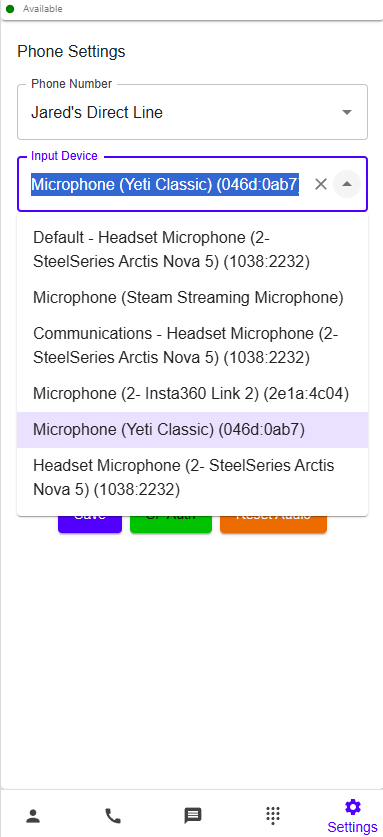
- Try changing your microphone in the phone settings, make sure to click "Save" after changing the microphone
Checking your Speaker Settings
Windows 11
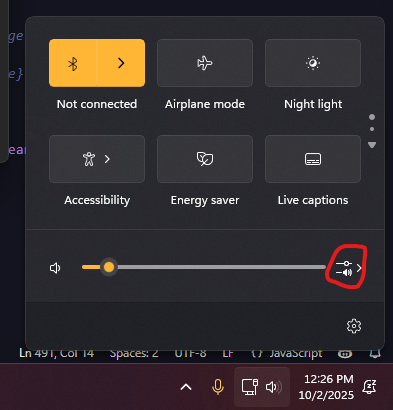
- Open your Speaker Settings
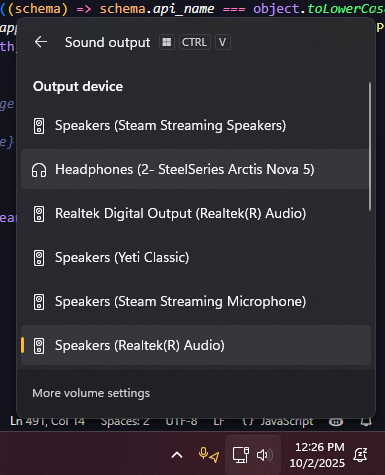
- Open the Devices and ensure you select the right one
Unable to load the App in Salesforce
If you are using Safari, please switch to Chrome or Edge. Safari is not supported in Salesforce for ValPhone.
Checking your connections
Try this link to test if you receive a PASS for all the tests.

Everything seems to be broken
- Perform a hard reset by logging out of the web app and mobile app.
Web App Logout
- Go to https://app.valstorm.com/
- Log out via the profile icon at the top right
- Log back in
- Open the phone inside this app
- Refresh salesforce if you are a salesforce user
Mobile App Logout
- Go to the settings tab
- Click log out