import Image from "next/image";
Mobile App
iPhone and Android Apps
These are the shared features of the iPhone and Android apps. Look for the iPhone and Android sections below for specific features of each app.
Tabs
The iPhone app has 5 tabs at the bottom of the screen:
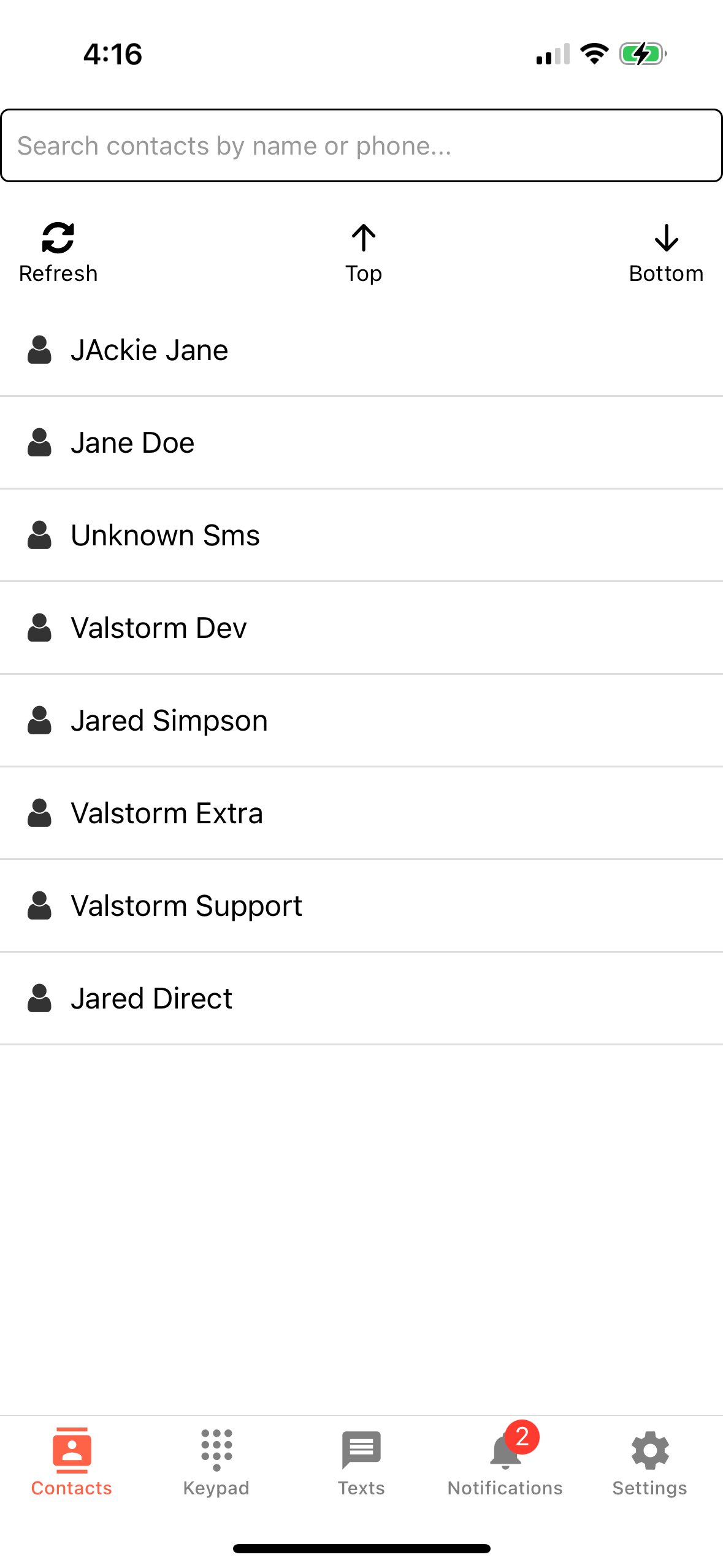
- Contacts - This tab shows all of your contacts. You can search for a contact by name or phone number.
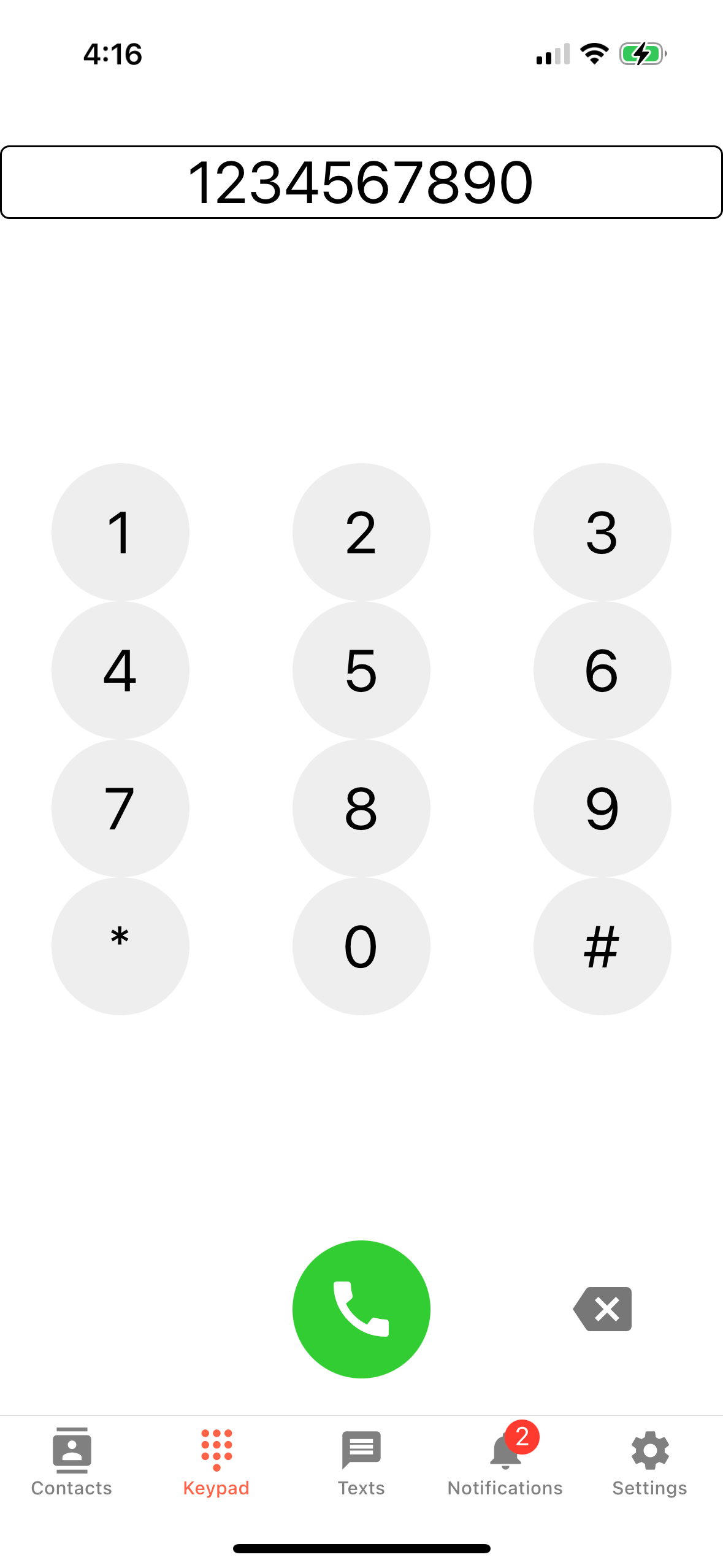
- Keypad - This tab allows you to dial a phone number manually. You can also access the keypad from the call screen.
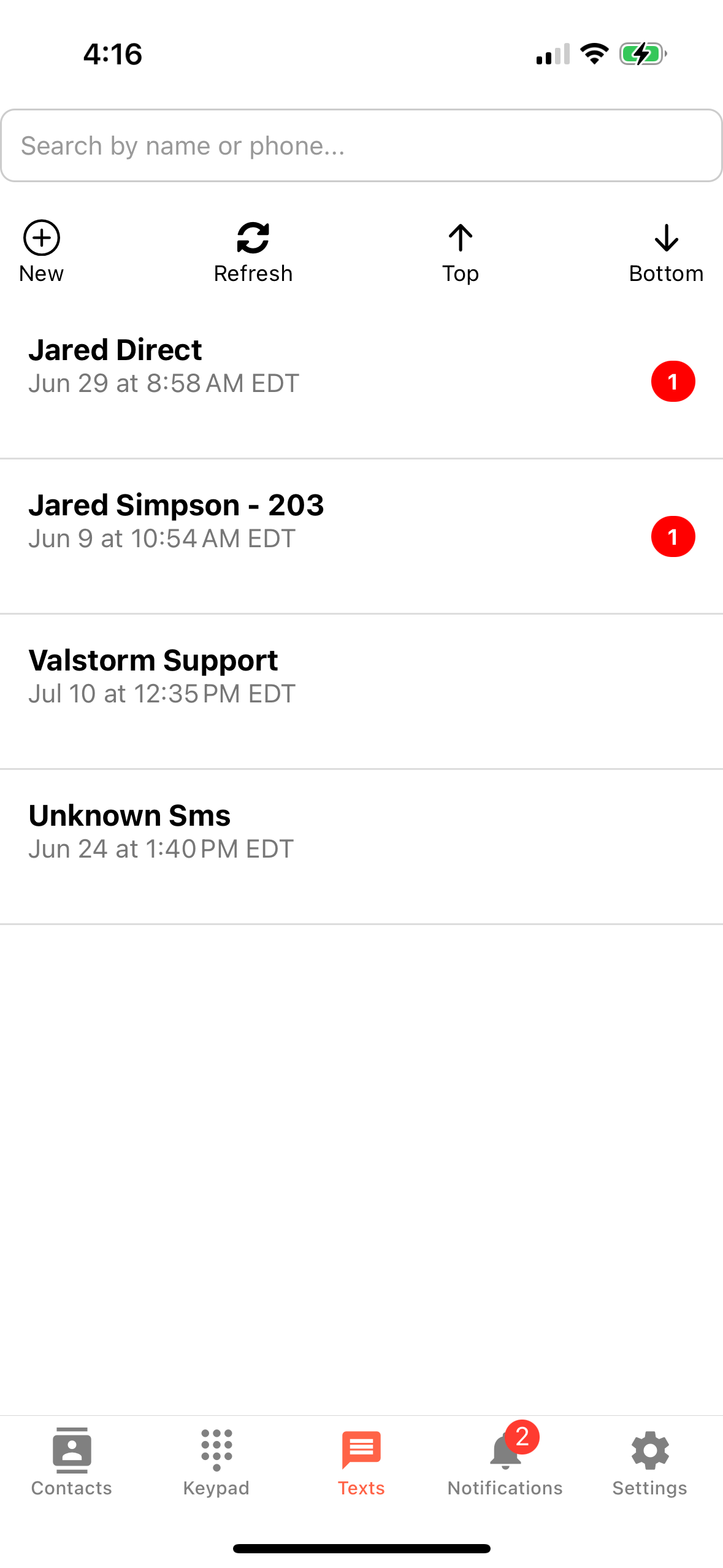
- Texts - This tab shows all of your text messages. You can send and receive text messages from this tab.
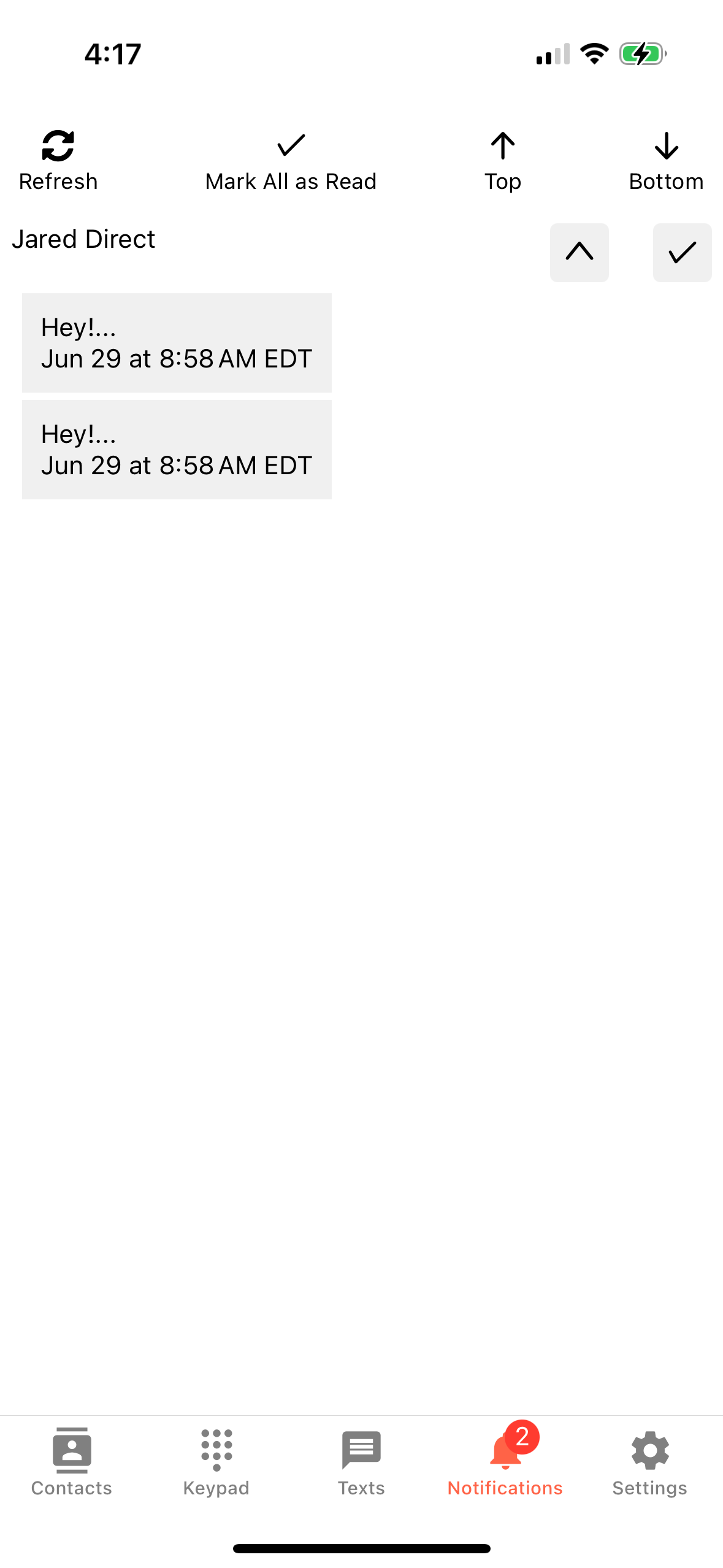
- Notifications - This tab shows all of your notifications. You can see missed calls, text messages, and other notifications from this tab.
- Settings - This tab allows you to change your settings. You can change your phone number or logout
iPhone App
The iPhone and android apps are very similar but have some specific differences. This section will cover the iPhone app.
Install it here
Getting Started with the iPhone App
- Download the app from the App Store
- Open the app and login with your ValPhone credentials
- OPTIONAL If you only want to receive calls on the mobile app, you can disable calls on the web app by updating your settings in the web app.
- Follow the instructions here to disable calls on the web app in the "Set the device you receive calls on" section
- Docs Click Here
- Review the steps below to learn how to use the app
Android App
- Download the app from the Google Play Store
Getting Started with the Android App
- Download the app from the Google Play Store
- Open the app and login with your ValPhone credentials
- OPTIONAL If you only want to receive calls on the mobile app, you can disable calls on the web app by updating your settings in the web app.
- Follow the instructions here to disable calls on the web app in the "Set the device you receive calls on" section
- Docs Click Here
- Review the steps below to learn how to use the app
iPhone & Android
- Contacts - This tab shows all of your contacts. You can search for a contact by name or phone number.
- Keypad - This tab allows you to dial a phone number manually. You can also access the keypad from the call screen.
- Texts - This tab shows all of your text messages. You can send and receive text messages from this tab.
- Notifications - This tab shows all of your notifications. You can see missed calls, text messages, and other notifications from this tab.
- Settings - This tab allows you to change your settings. You can change your phone number or logout
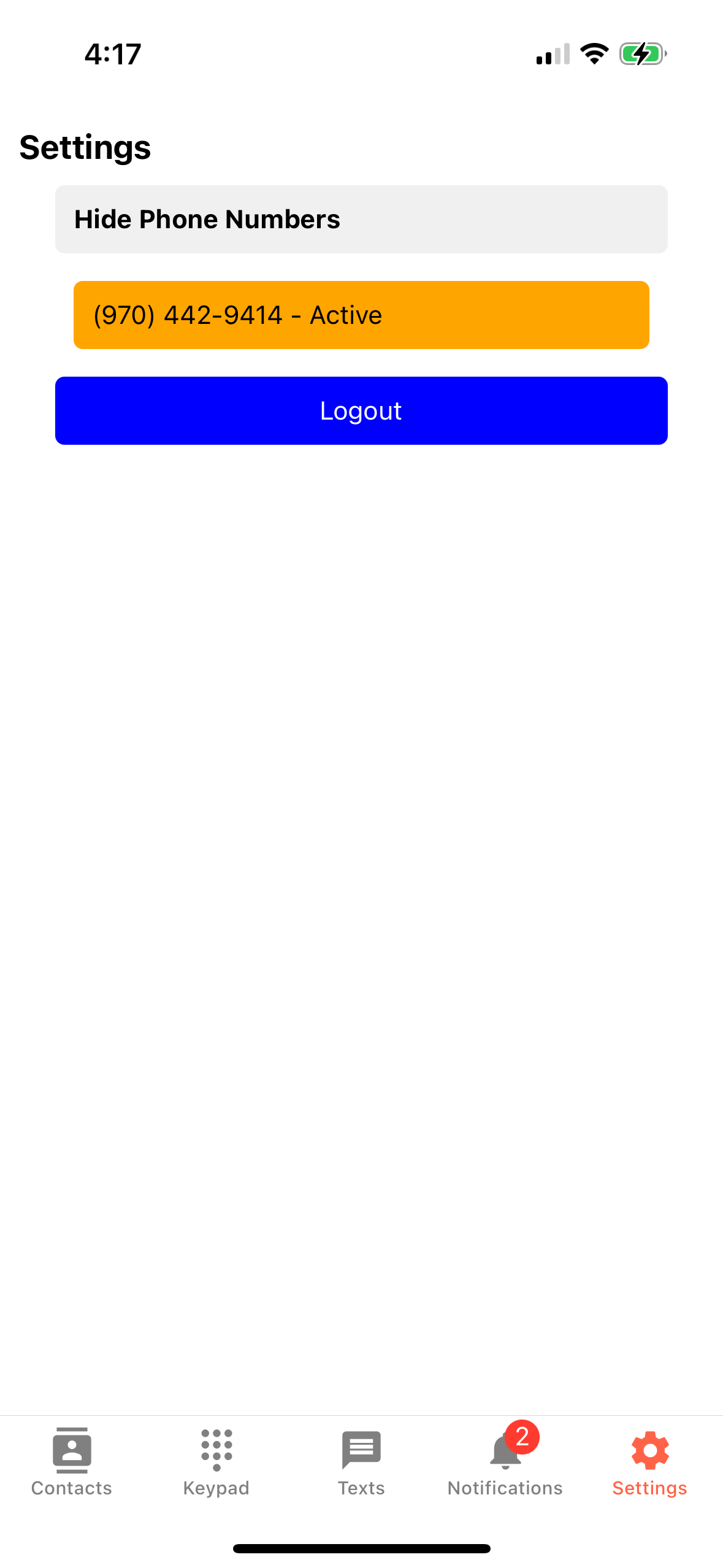
- The Contact Screen - This screen shows the contact information for the person you are calling. You can see their name, phone number, and any notes you have added to their contact.
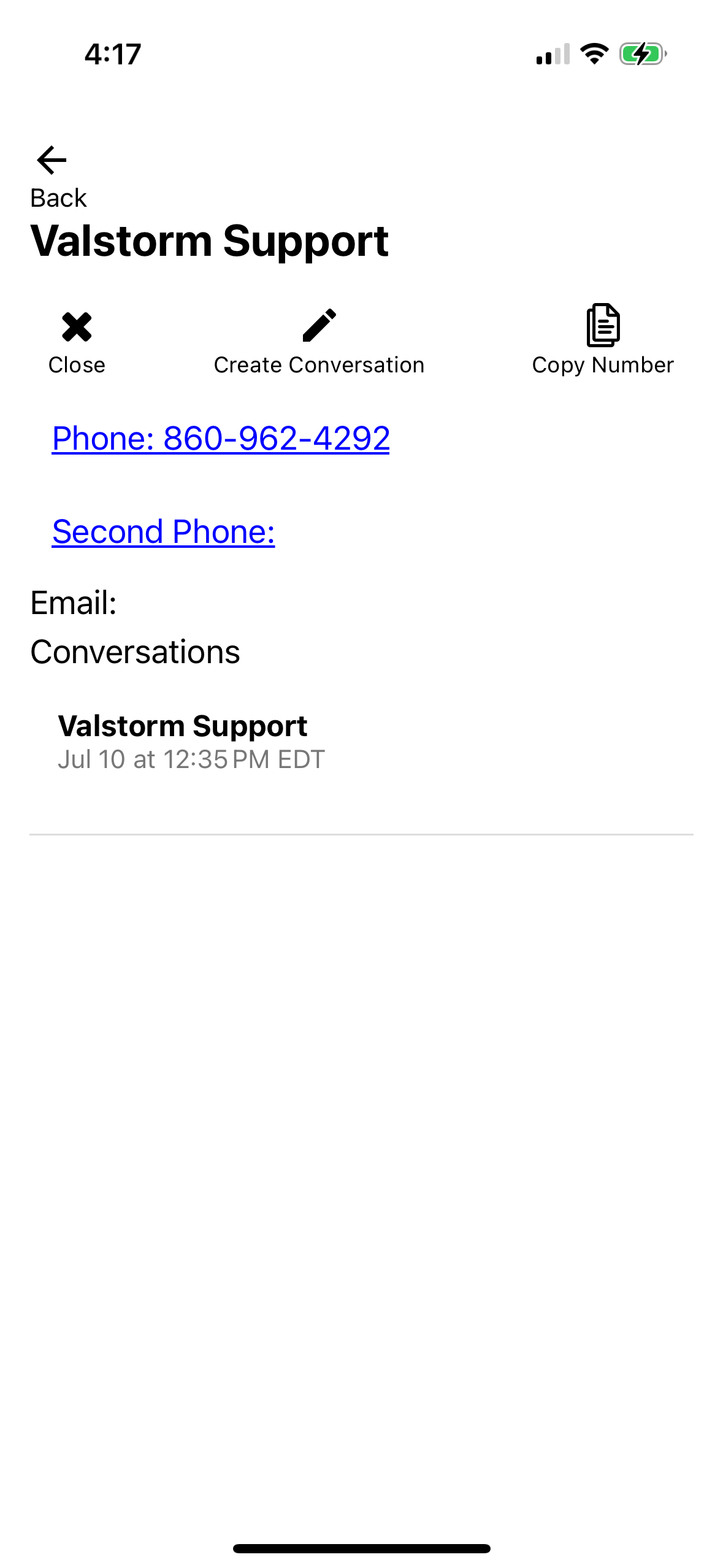
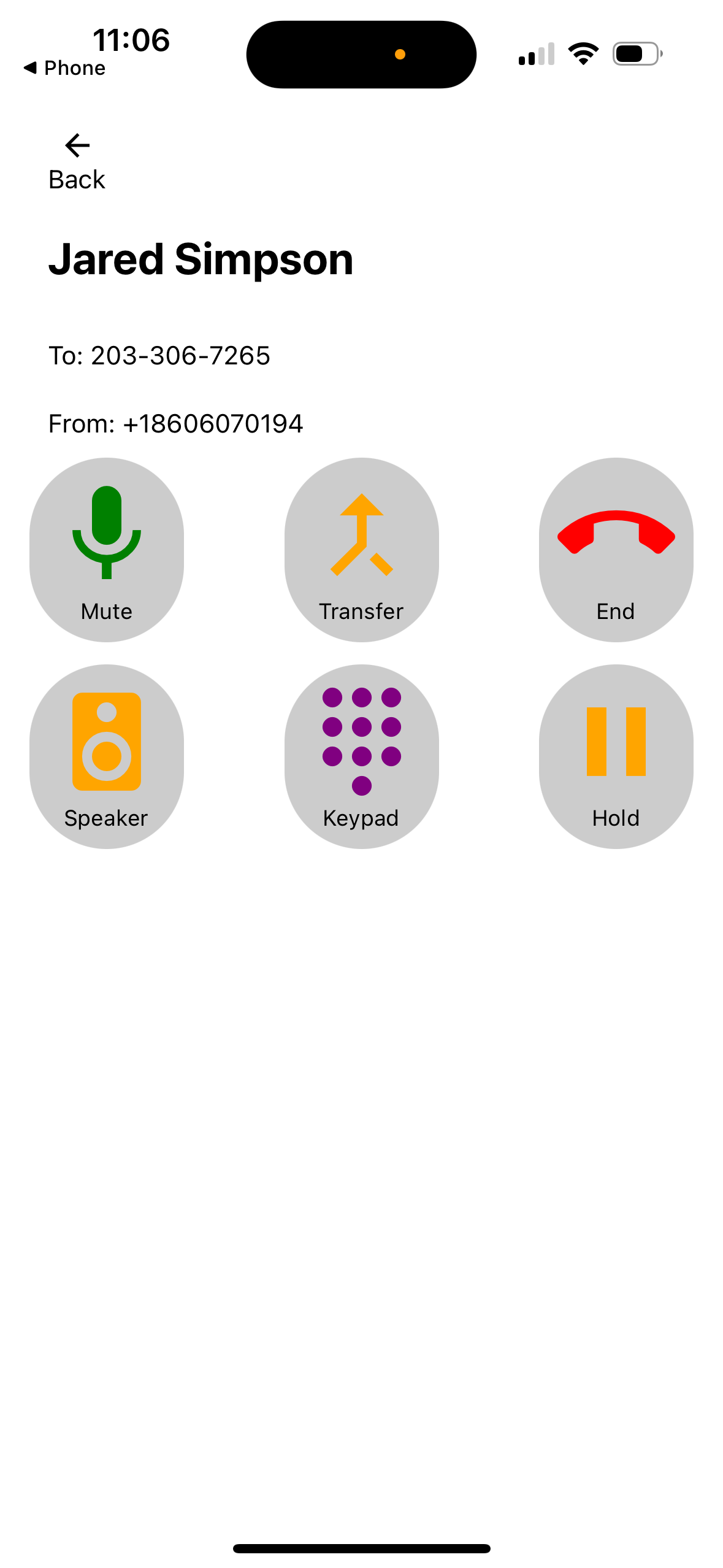
- The Call Screen - This screen shows the call information for the person you are calling. You can see their name, phone number, and any notes you have added to their contact. You can also access the keypad, mute, speaker, and end call buttons from this screen.
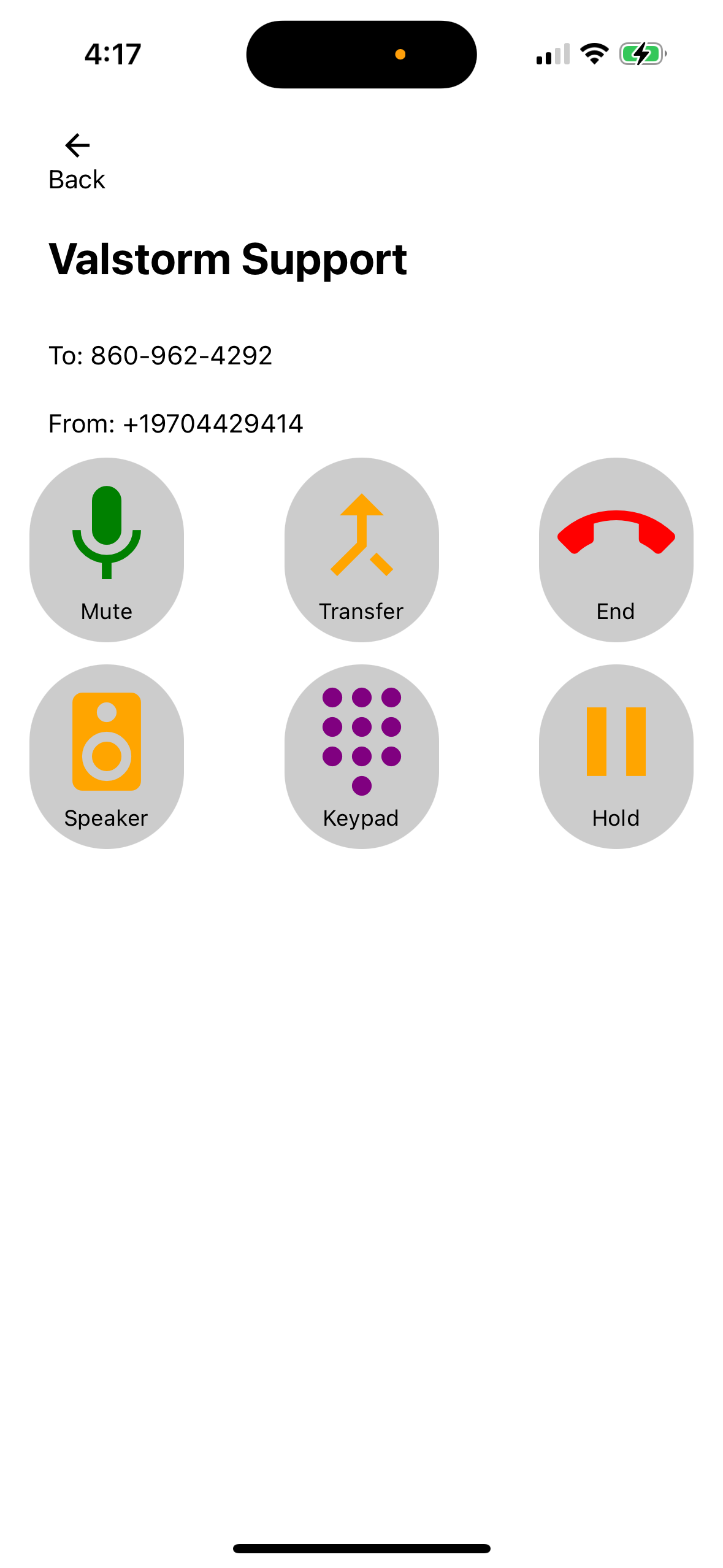
iPhone & Android - Inbound Call, Phone is Locked
- When receiving an inbound call while the phone is locked, answer calls using the slide to answer feature.
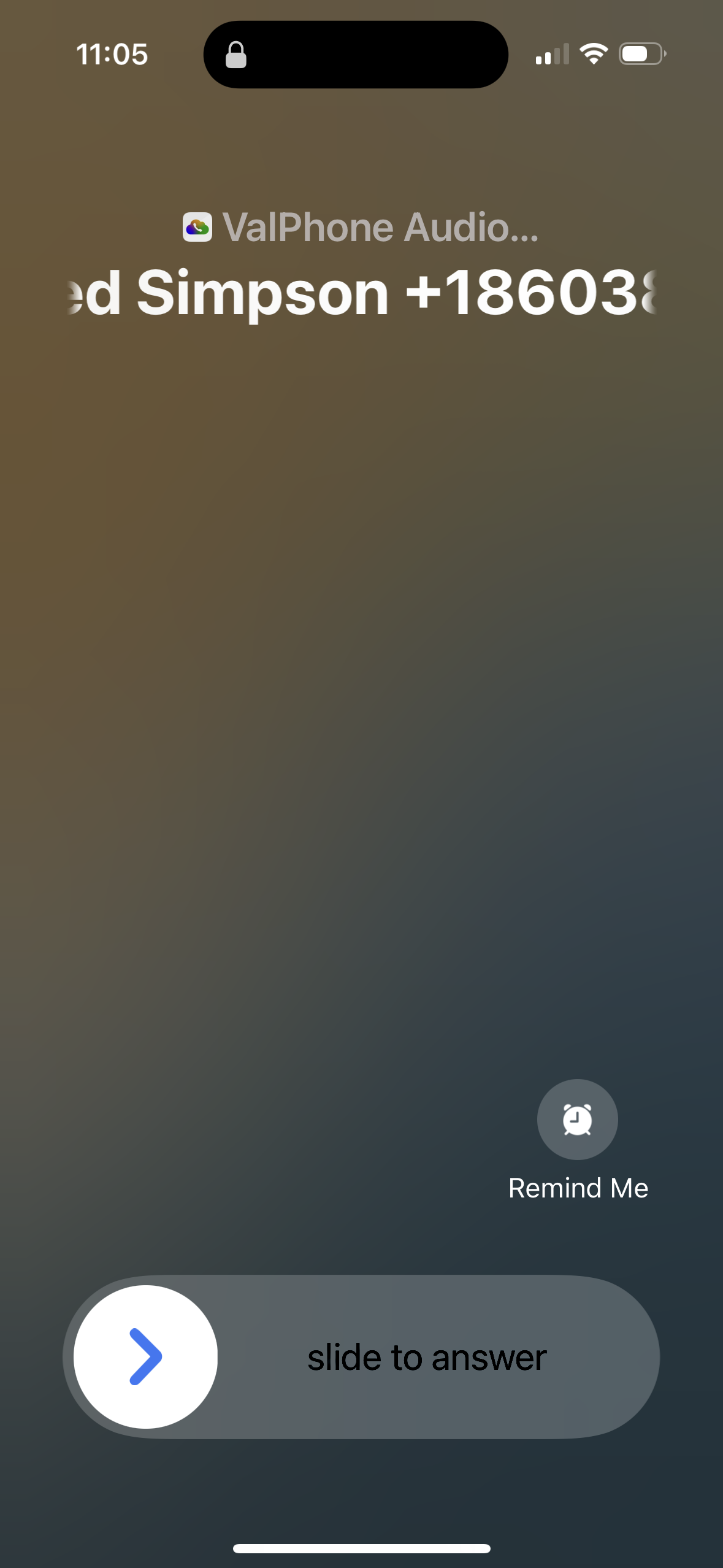
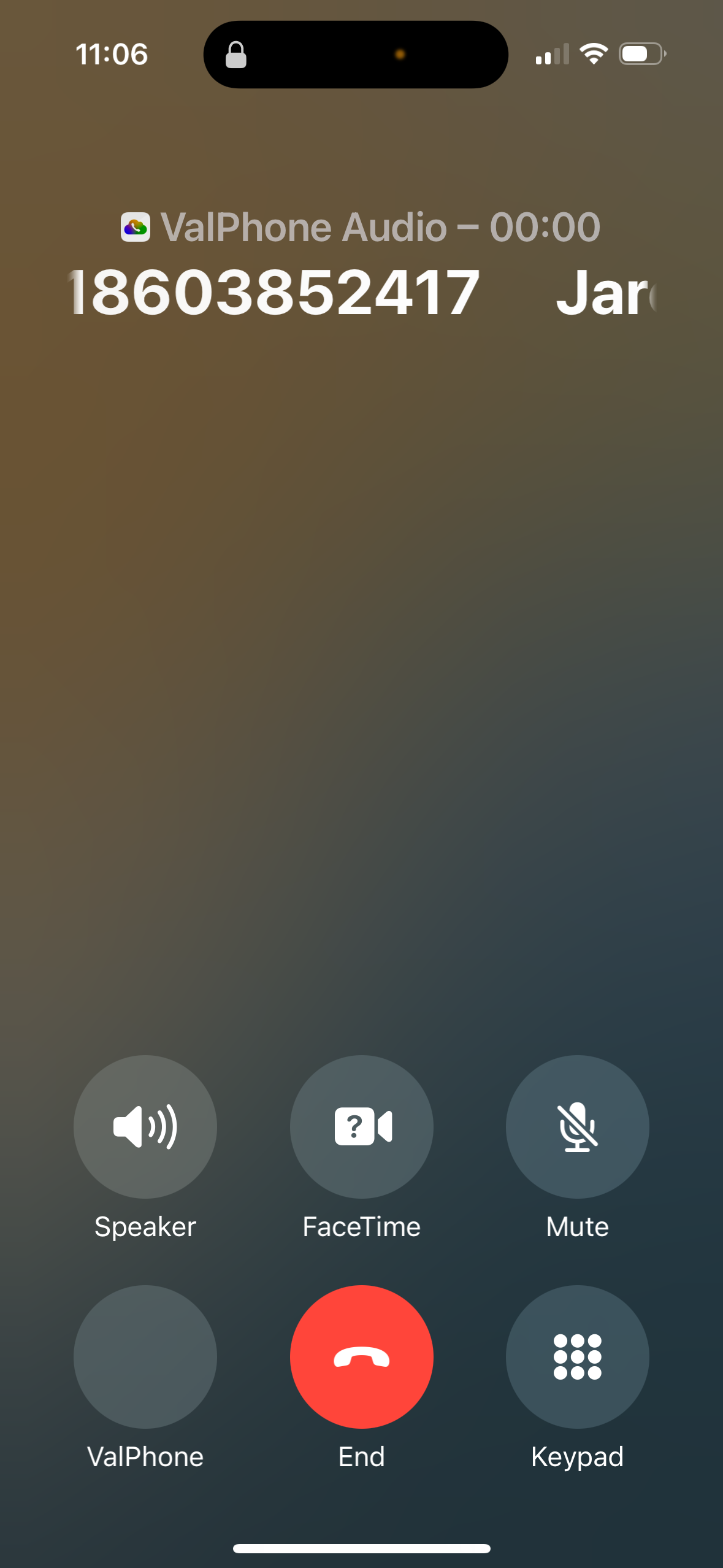
- Once you Answer the call, you will see this screen. Click the "ValPhone" button in the bottom left corner to open the app for more options
- This will open the app and show you the call screen with more options
- You can enter your notes once the call has ended
<Image
src="https://valstorm-public.nyc3.cdn.digitaloceanspaces.com/valstorm/Valstorm%20LLC/IMG_0138.PNG"
alt="Enter Notes"
width={200}
height={200}
/ >
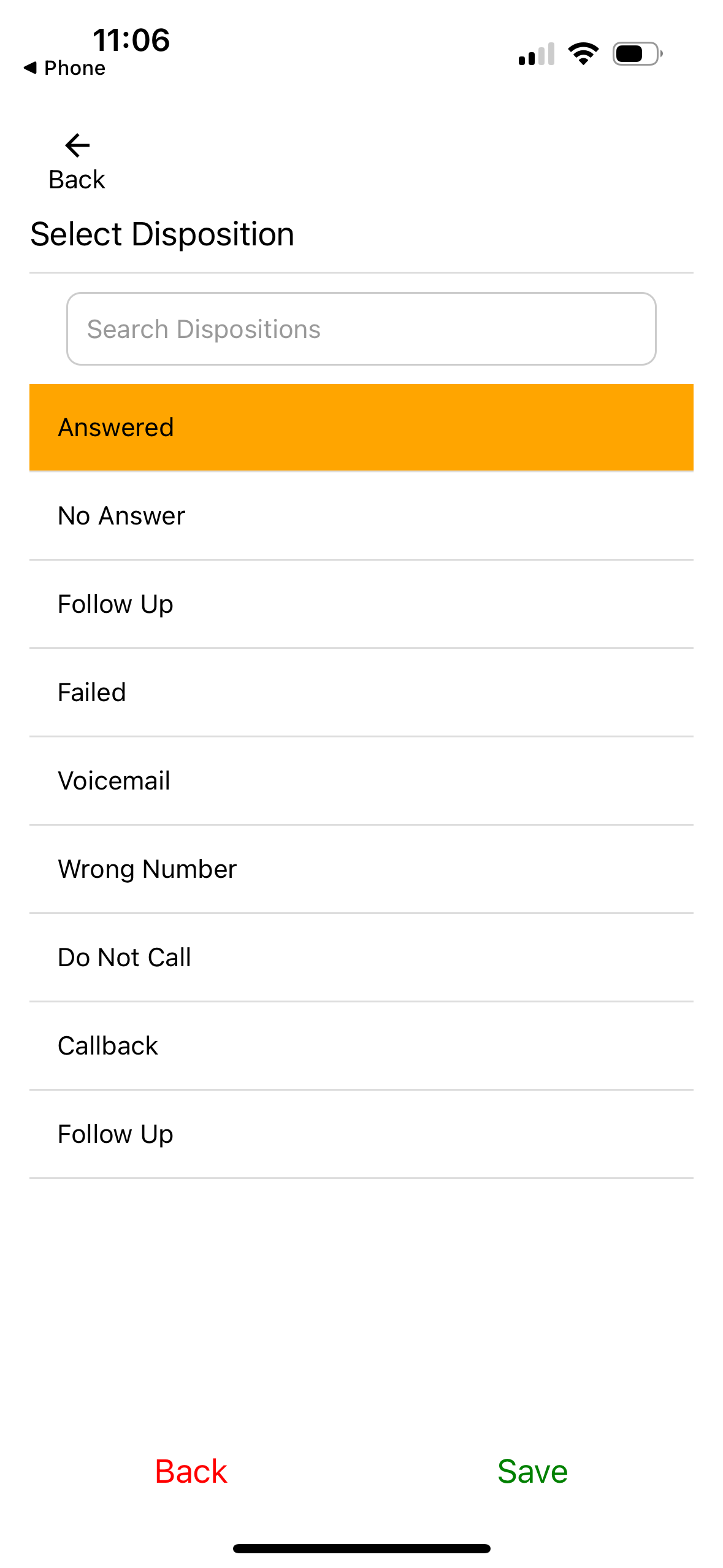
- You can then disposition the call according to the outcome of the call
iPhone & Android - Inbound Call, Phone is Unlocked
-
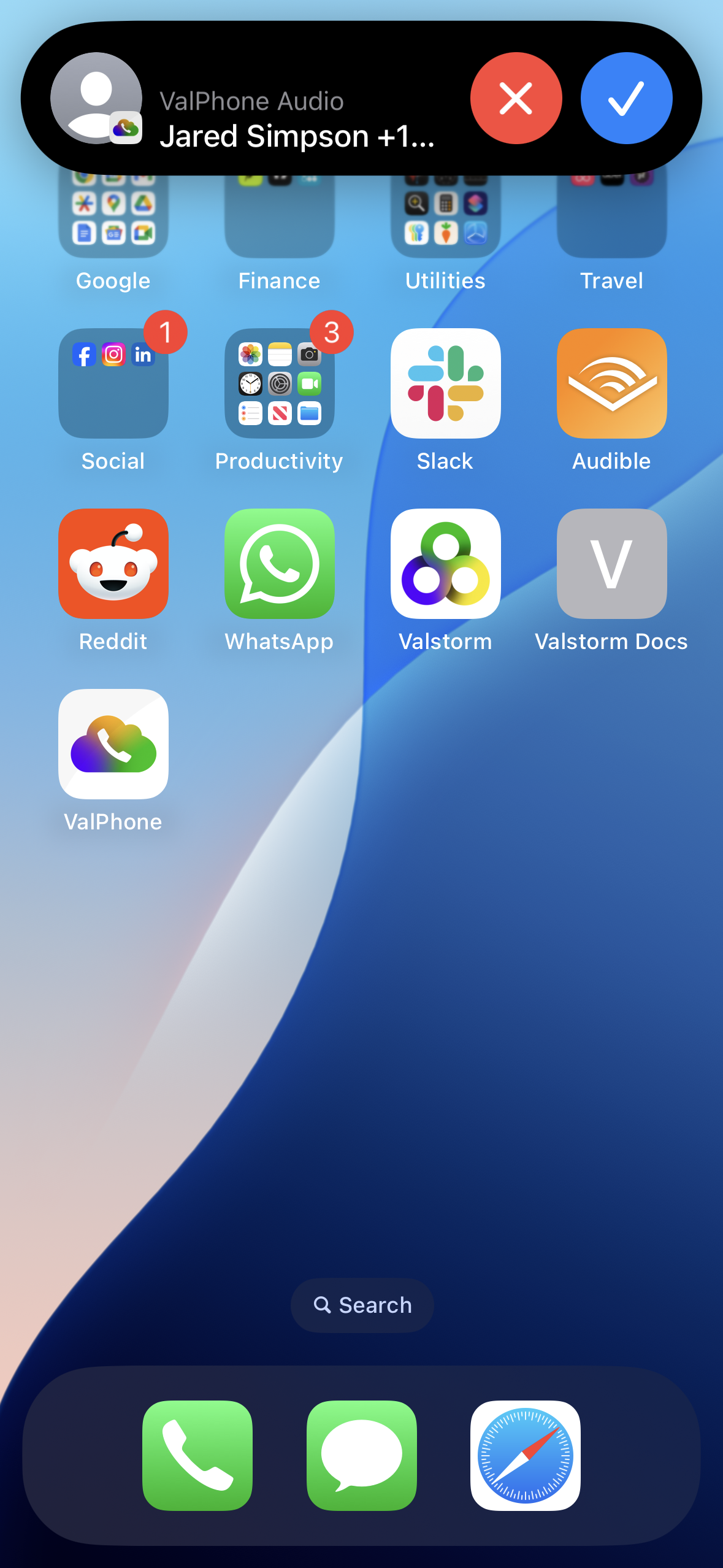
When receiving an inbound call while the phone is unlocked, the mobile app will show an alert at the top of the screen.
-
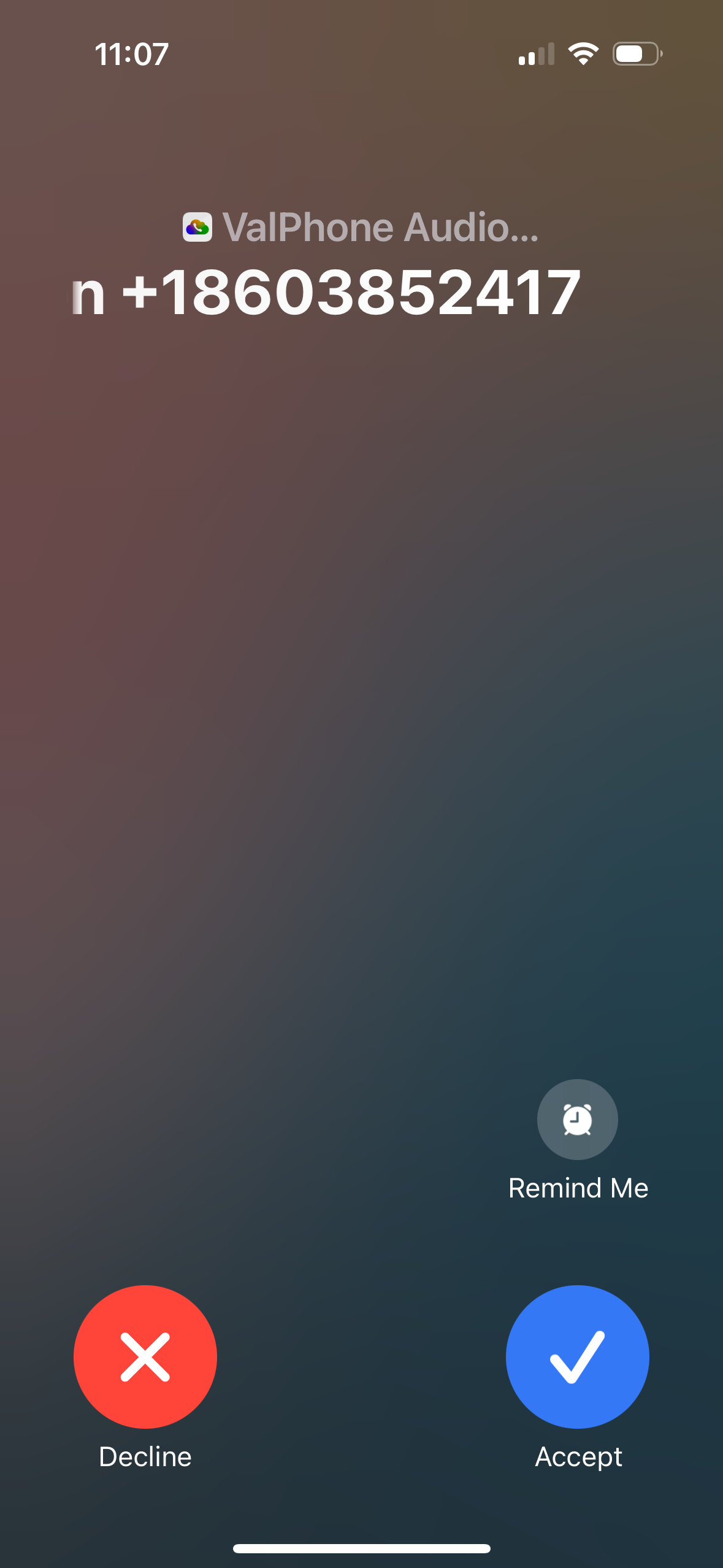
If you click on the alert instead of the blue check mark, it will open this screen. Choose to decline or answer the call
-
If you answer the call, it will open the app to the call screen with more options
-
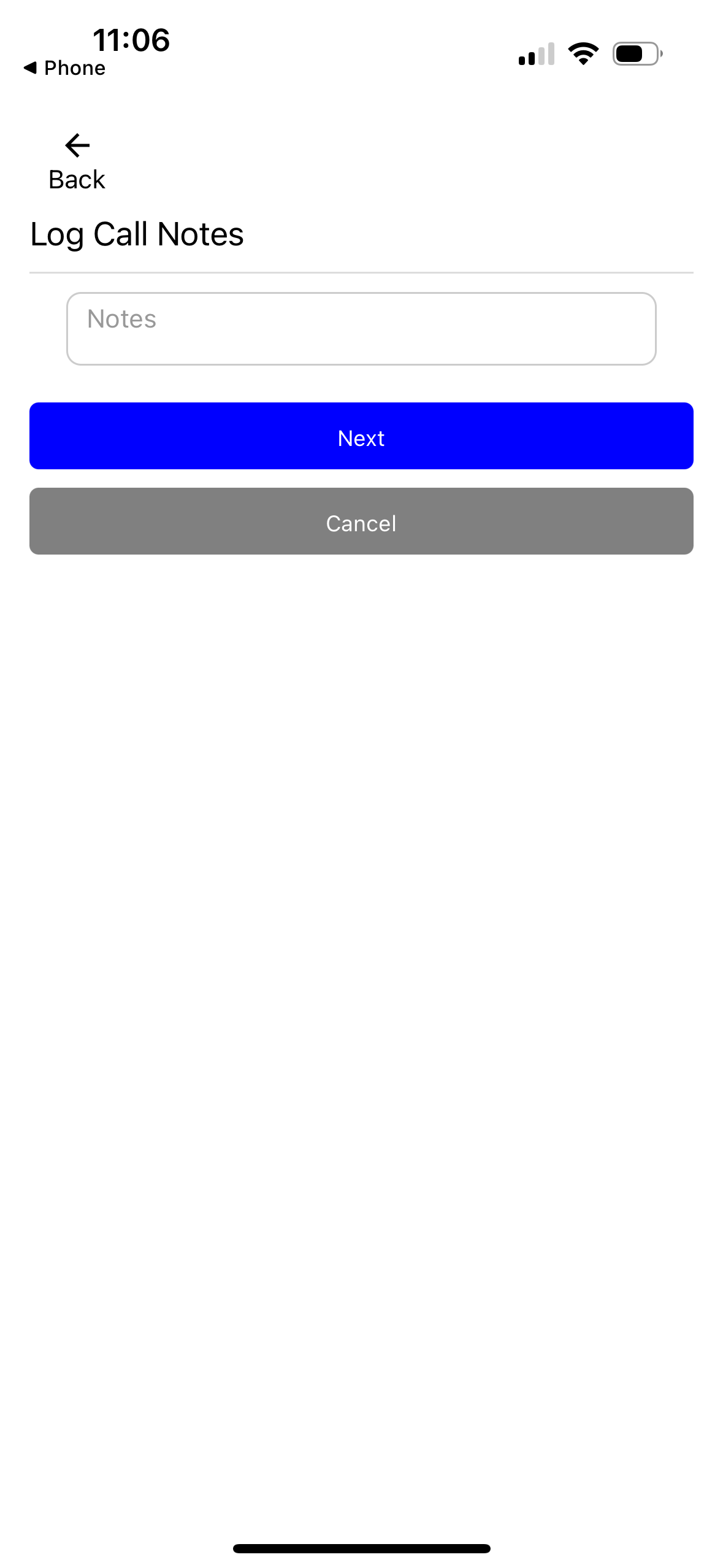
You can enter your notes once the call has ended
-
You can then disposition the call according to the outcome of the call
