import Image from 'next/image';
Salesforce User Quickstart
Video Walkthrough
Please follow the video below for a quick walkthrough of setting up and using ValPhone within Salesforce.
Configure your Account
There are five sections to configure your account fully.
1. Register your Salesforce account with ValPhone
2. Set the device you receive calls on
3. Set the microphone (input device) that you will use for calls
4. Set which phone number you will mainly use and if you will have an extension
5. Set when you are available to receive calls & texts
Registering Your Salesforce Account with ValPhone
- Login to the Valstorm App
- Login to Salesforce
- Open the ValPhone Utility in Salesforce
- Click on the ValPhone Utility, usually found in the bottom right corner of the screen
- Click Setup Phone
- At the bottom right of the phone, click the settings icon
- At the bottom, there will be a green "SF Auth" button. Click that. It will redirect you to login to salesforce again, ask you to allow access, and then redirect you back to the ValPhone Utility. If everything went well, you will see a green pop up that says "Authenticated"
Set the device you receive calls on
If you install the ValPhone mobile app, you can choose to receive calls on your computer, your mobile device or both. Information about the mobile app can be found here: ValPhone Mobile App
- Open the Phone and go to settings
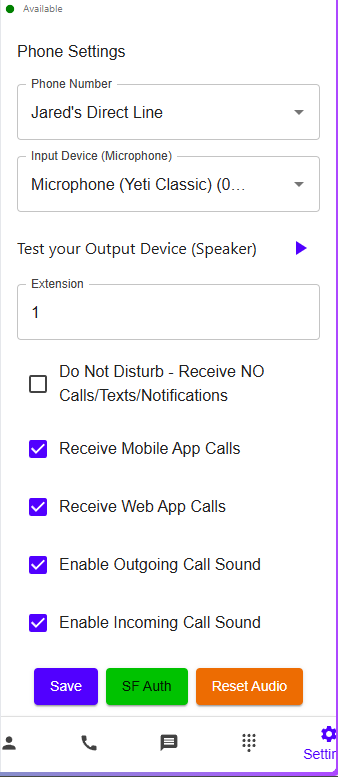
- Set which device to receive calls on, press save
Set the microphone (input device) that you will use for calls
- Open the Phone and go to settings
- Set which microphone you will use for calls using the Input Device dropdown, press save
Set which phone number you will mainly use and if you will have an extension
- Open the Phone and go to settings
- Set which phone number you will use for calls using the Phone Number dropdown
- If you will have an extension, set it in the Extension field. This is a free form number field. It will tell you if a number is already taken so you can choose a different one. Press save
Settings Screen Shots
Everything in sections 1 - 4 can be managed at the settings screen in the ValPhone Utility. This screen shot shows all the options available. For availability settings, see the next section.
Set when you are available to receive calls & texts
- Go to the valstorm app
- Go to your profile
- Click Edit
- Scroll down to the bottom
- Modify the following:
- Each day and time
- Your time zone
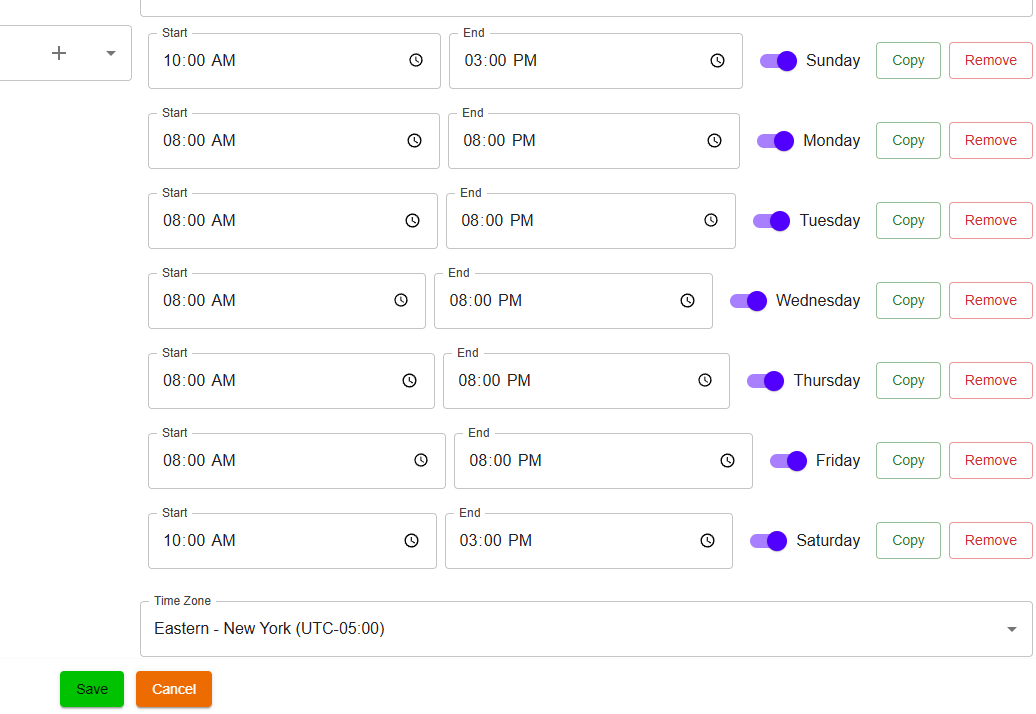
- Click save
Checking your Speaker Settings
Windows 11
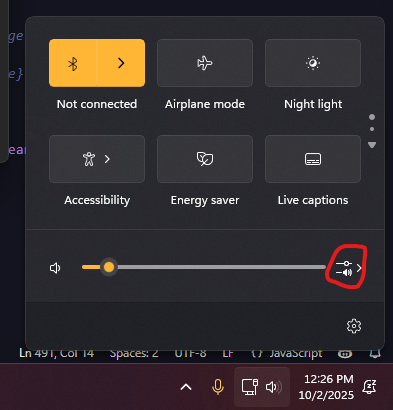
- Open your Speaker Settings
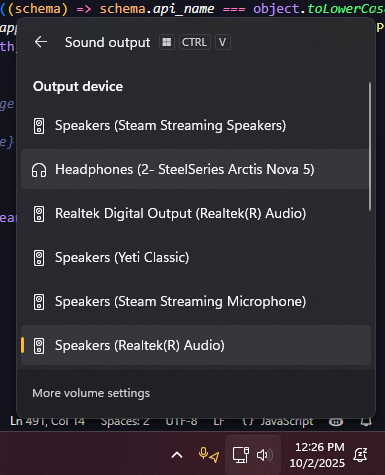
- Open the Devices and ensure you select the right one
Checking your Website Settings
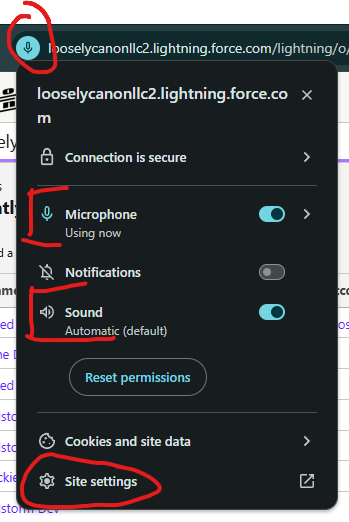
Ensure your browser is set to allow microphone and speaker access.
*