
Explore ValPhone
name: "Explore ValPhone" slug: "explore-valphone" category: "01_Getting_Started" section: "Core Concepts" version: "1.0.0" sort_order: 1 description: "Get started with Explore ValPhone in under 5 minutes. Learn how to navigate your workspace and manage features." seo_title: "Explore ValPhone | Valstorm Docs" seo_description: "Get started with Explore ValPhone in under 5 minutes. Learn how to navigate your workspace and manage features." is_published: true is_public: true icon: "Rocket" published_date: "2026-09-22T20:03:46.709Z" modified_date: "2026-09-22T20:03:46.709Z" guide_id: "gui_oe6ZhKVchxN3zbQO"
Explore ValPhone
Step-by-Step Guide
1. Click to Open the Right Utility Panel
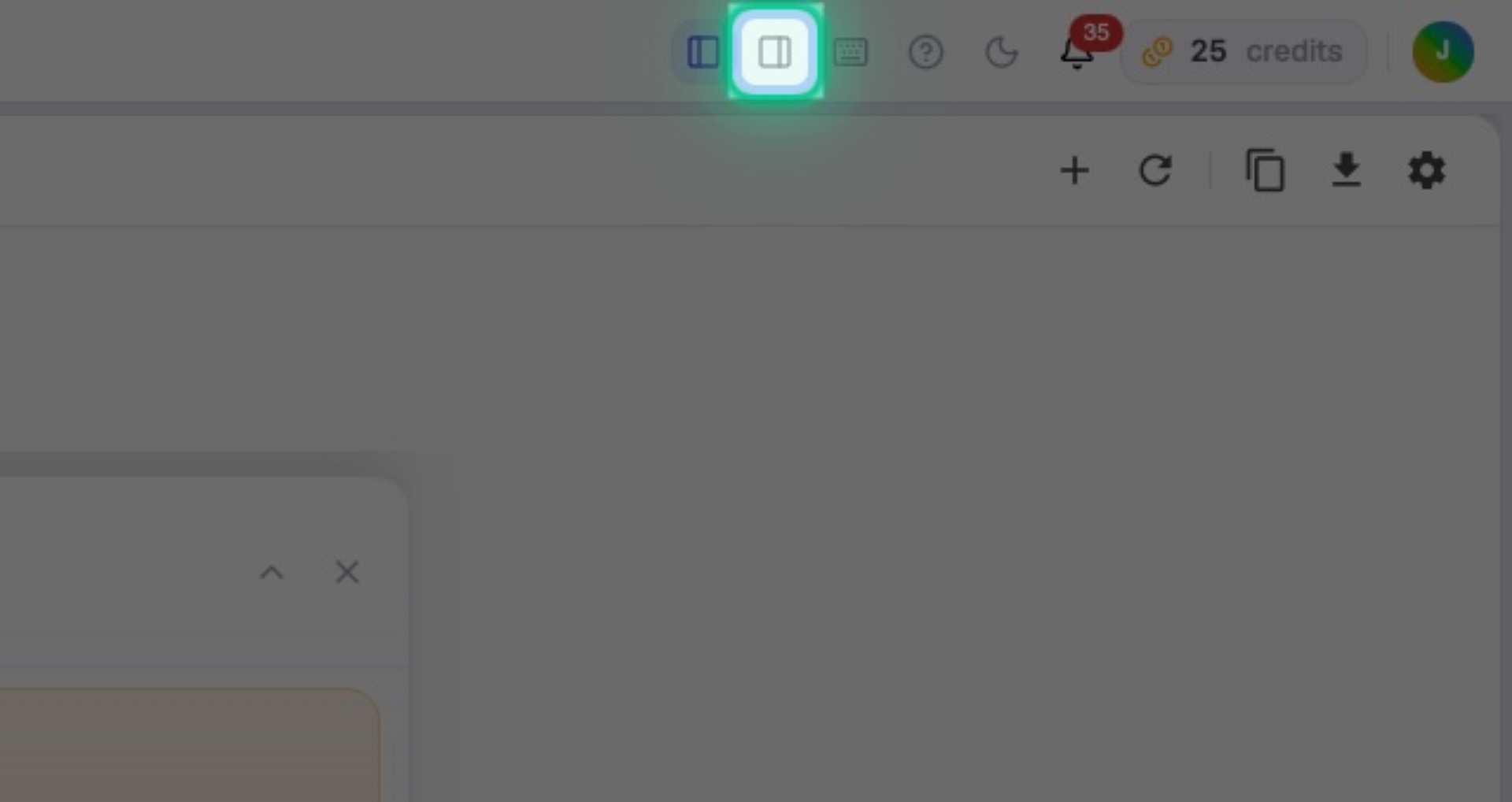
Interactive Target:
#top-nav-right-panel-toggle-btn
2. Open the Phone
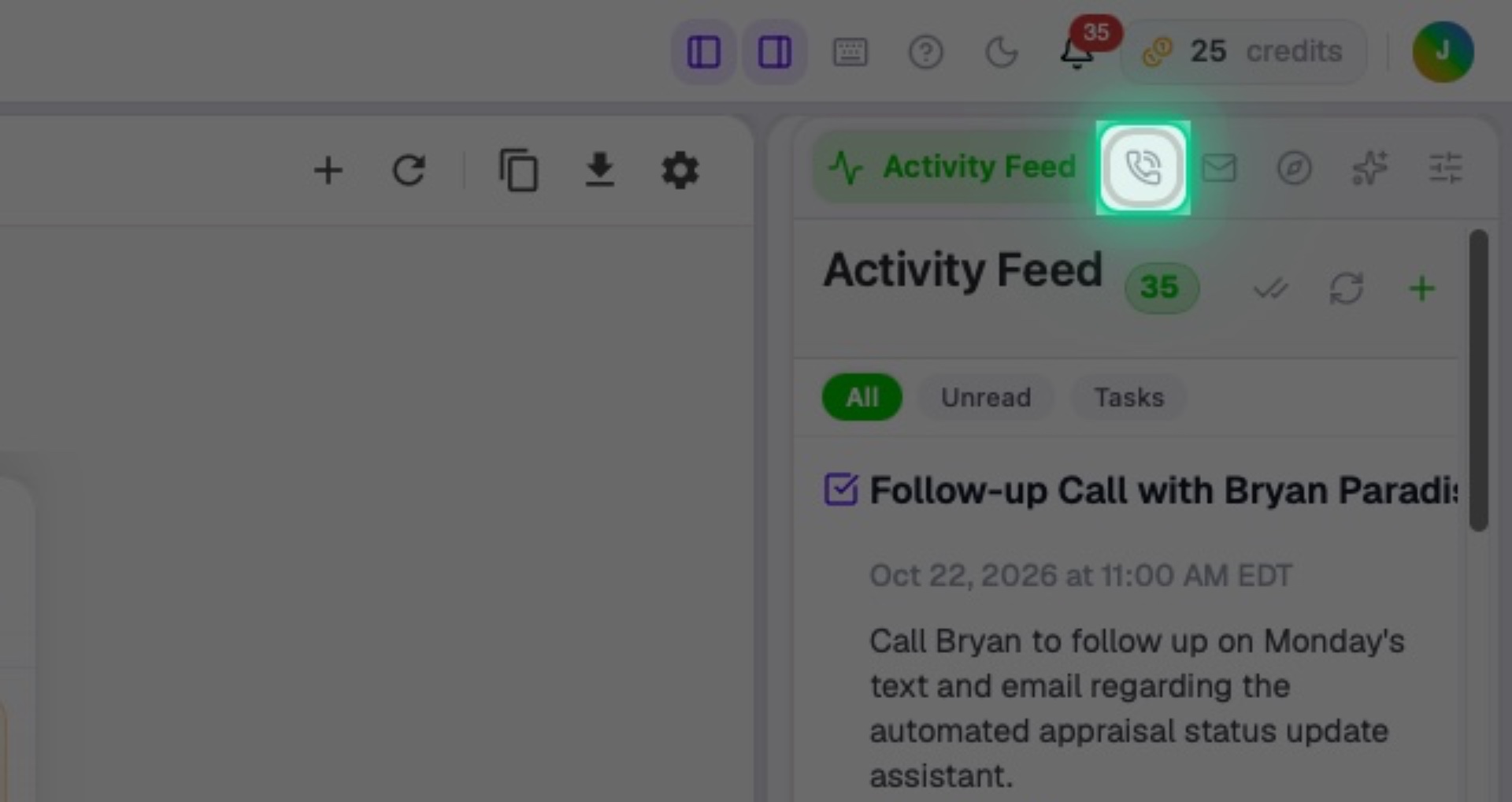
Interactive Target:
#right-utility-panel-utility-btn-phone
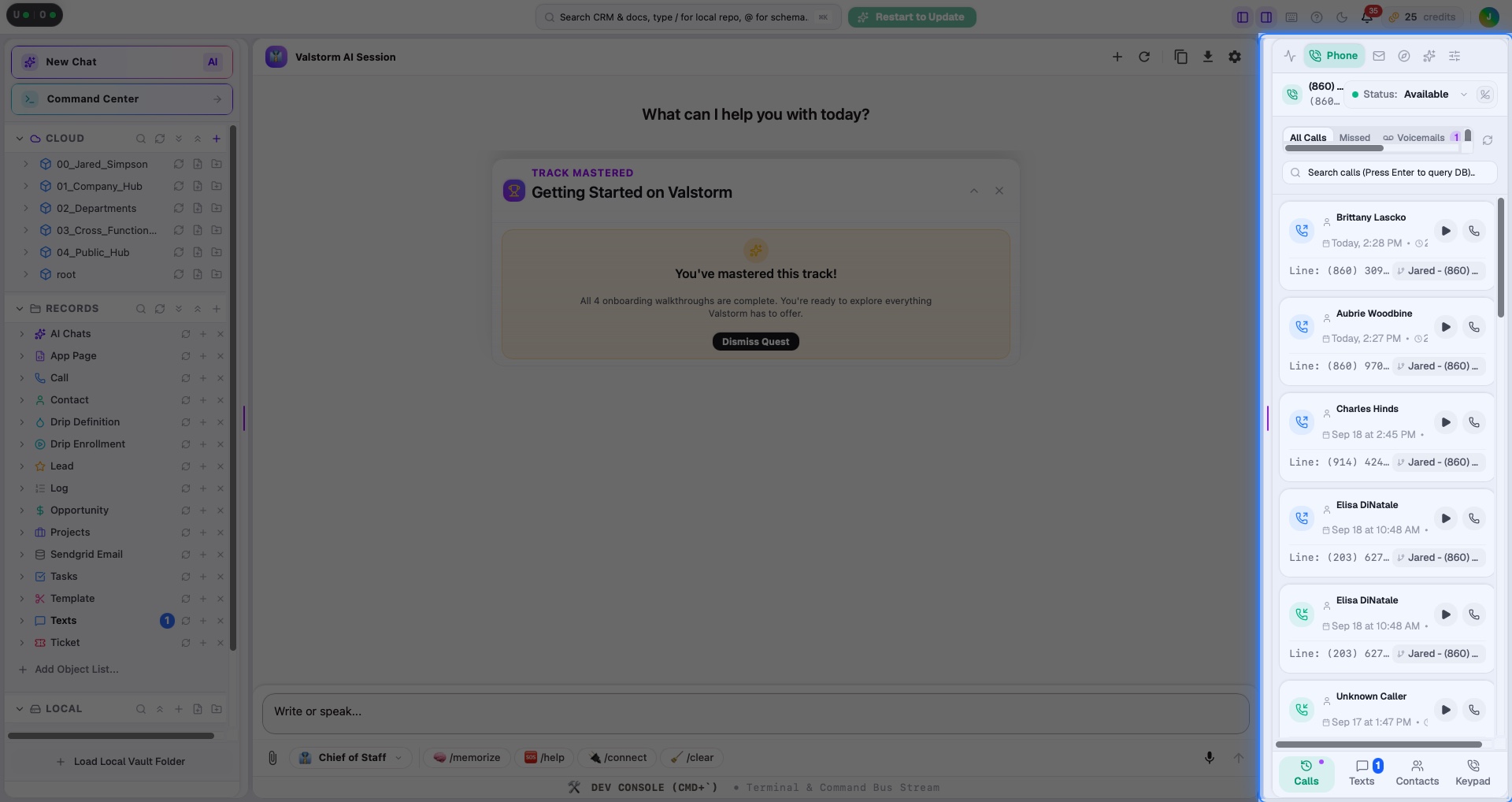
3. Phone Utiltiy
Welcome to the Phone! Here you can review calls, texts, contacts and dial. We’ll continue to explore.
Interactive Target:
#right-utility-panel
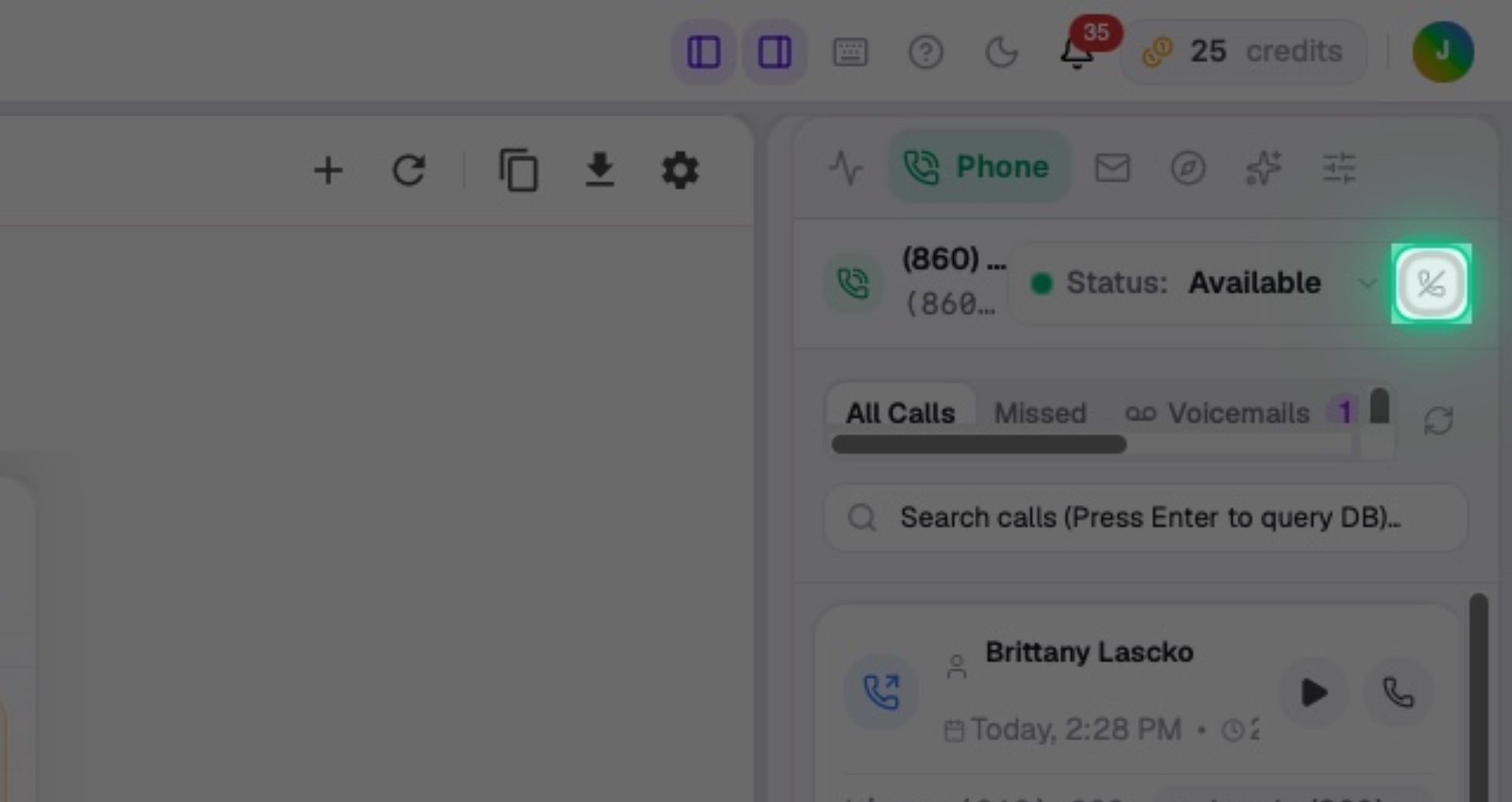
4. Activate the Phone
You must click this phone icon to ensure you receive calls and make calls. Activate this each time you start the app.
Interactive Target:
#right-utility-panel-phone-device-toggle-btn
5. Phone Tabs
Down here are the different tabs to the phone. We’ll explore each of them
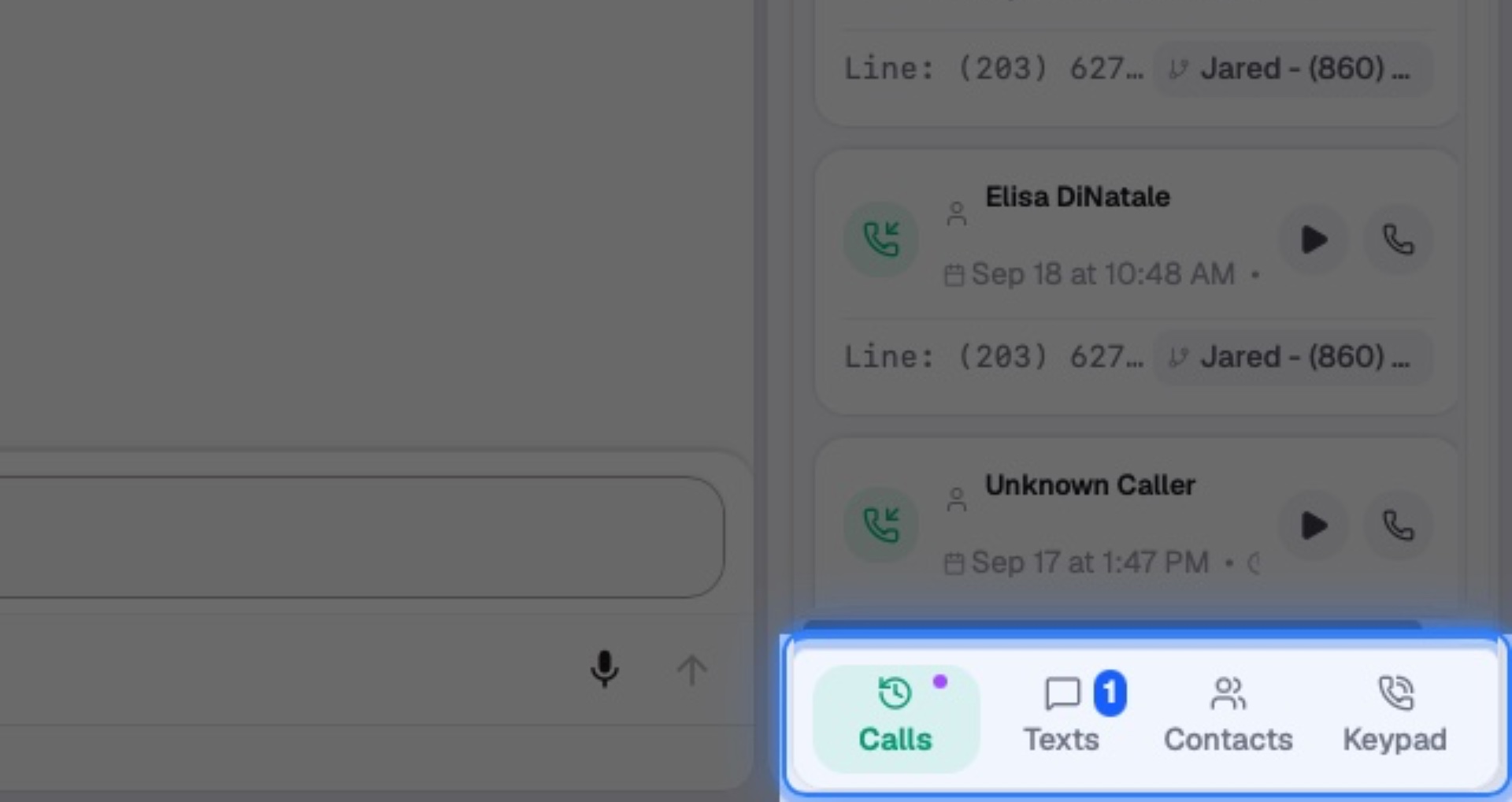
Interactive Target:
#right-utility-panel-phone-bottom-nav
6. Click Texts
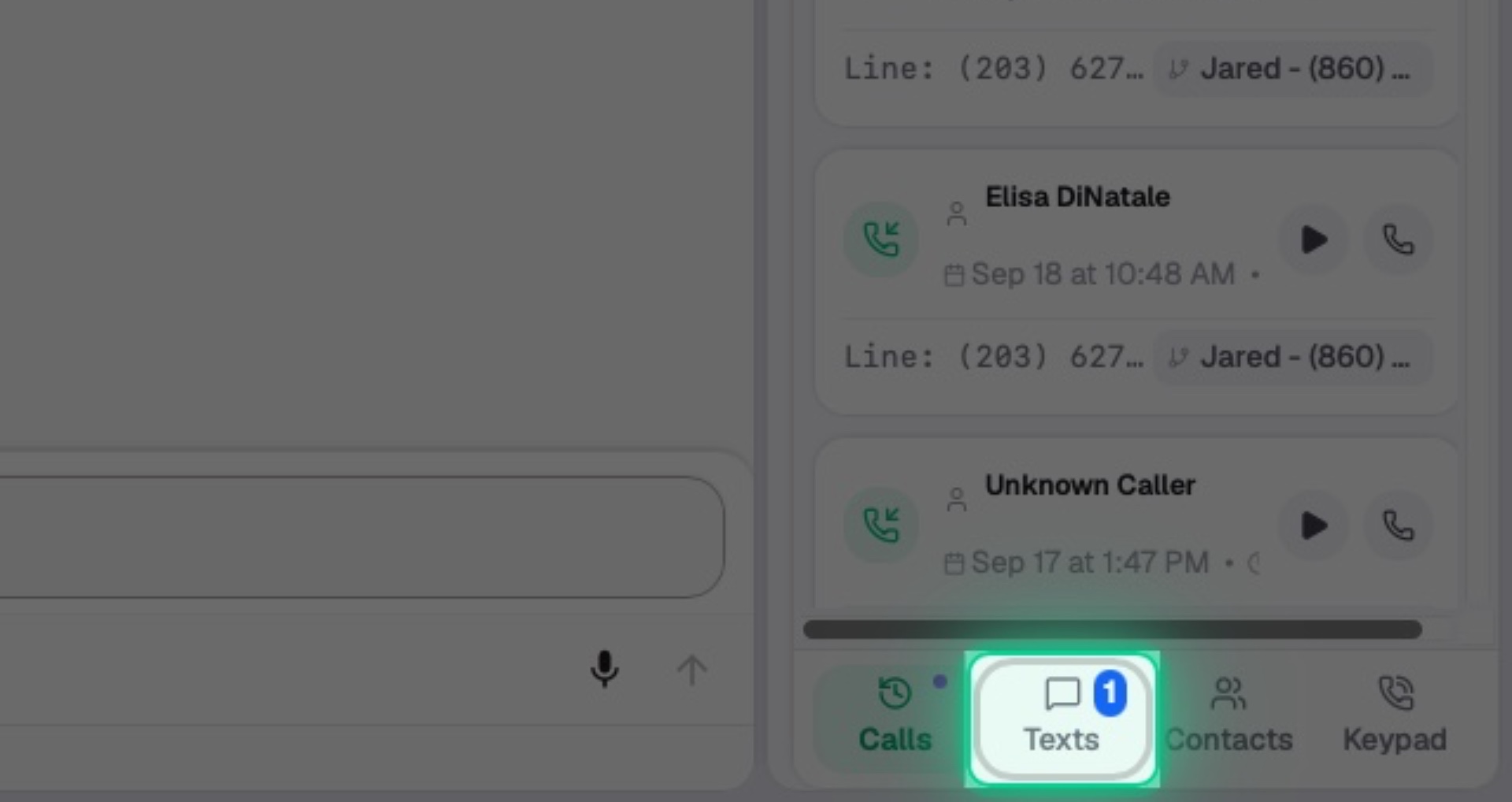
Interactive Target:
#right-utility-panel-phone-tab-btn-texts
7. Click Contacts
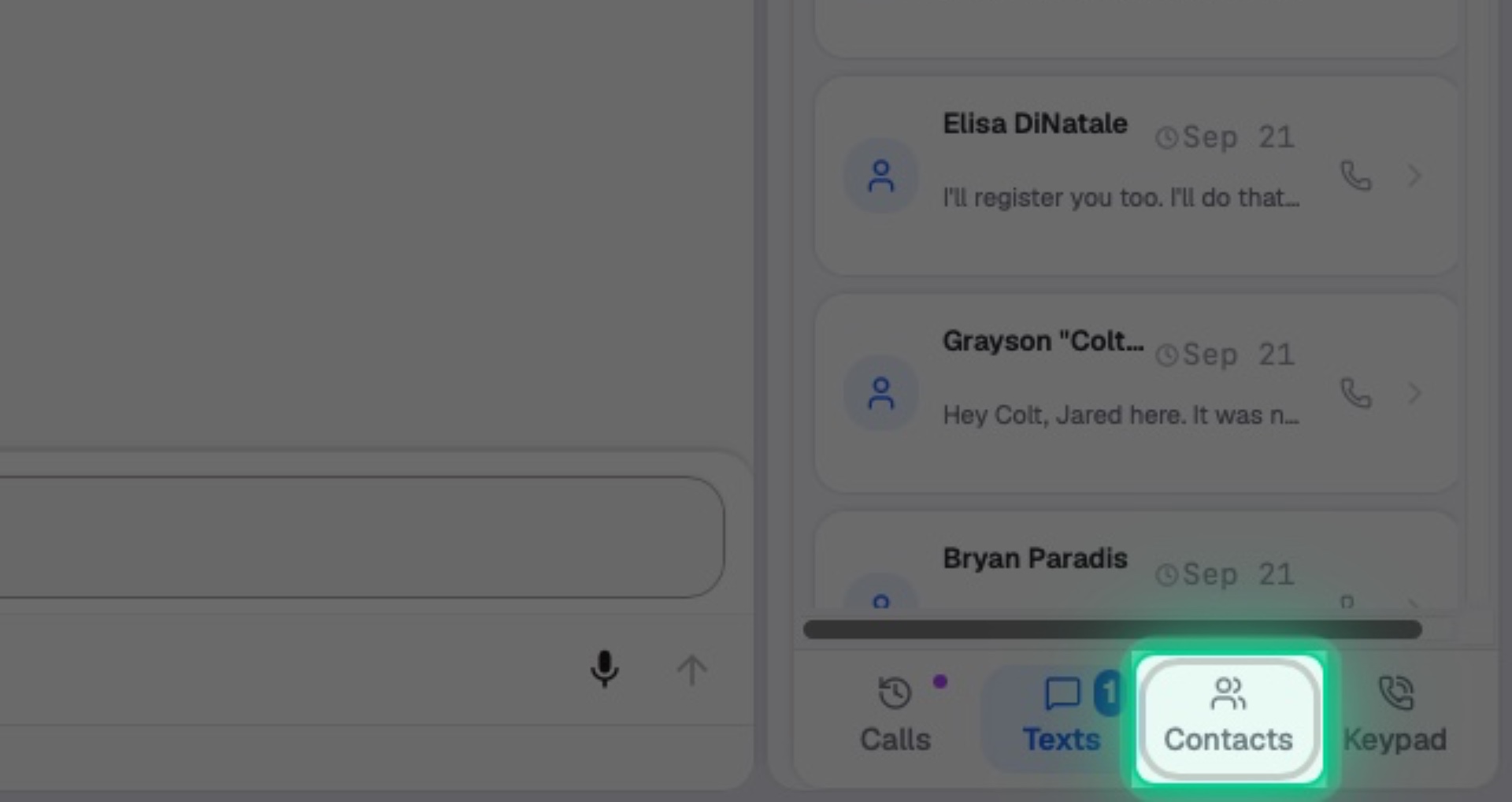
Interactive Target:
#right-utility-panel-phone-tab-btn-contacts
8. Click Keypad
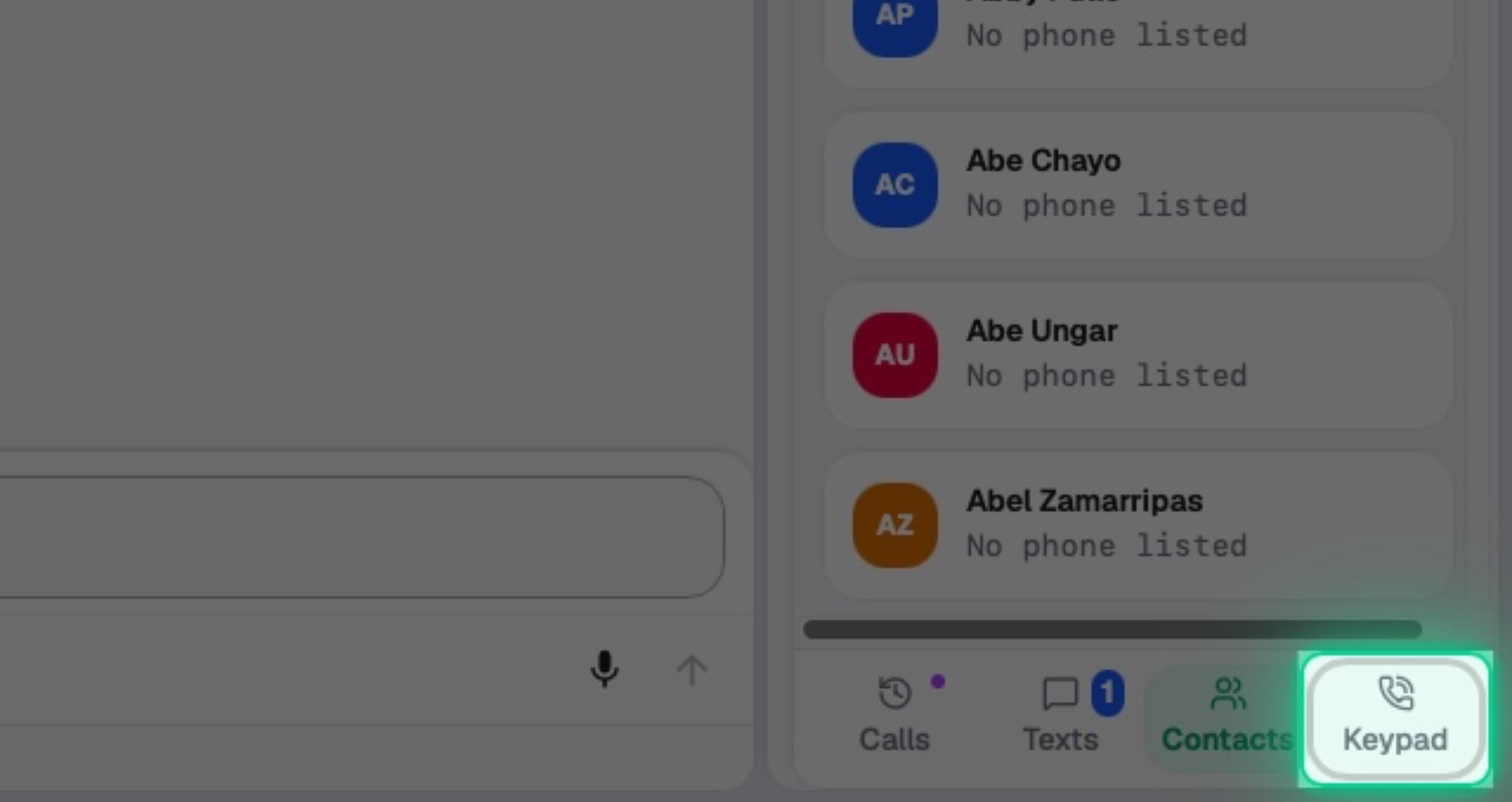
Interactive Target:
#right-utility-panel-phone-tab-btn-keypad
🧭 Interactive Walkthrough: Click ▶ Launch Interactive Guide: Explore ValPhone to start this hands-on tour directly in Valstorm.