
Navigating Your Workspace
name: "Navigating Your Workspace" slug: "navigating-your-workspace" category: "01_Getting_Started" section: "Core Concepts" version: "1.0.0" sort_order: 1 description: "A quick visual tour of the primary workspace layout: the navigation sidebar, cloud storage, database records, and the utility panel." seo_title: "Navigating Your Workspace | Valstorm Docs" seo_description: "A quick visual tour of the primary workspace layout: the navigation sidebar, cloud storage, database records, and the utility panel." is_published: true is_public: true icon: "Rocket" published_date: "2026-09-16T12:18:37.472Z" modified_date: "2026-09-16T12:18:37.472Z" guide_id: "gui_Wt1h2bI3IDdlqPZY"
Navigating Your Workspace
A quick visual tour of the primary workspace layout: the navigation sidebar, cloud storage, database records, and the utility panel.
Step-by-Step Guide
1. Left Panel
Your primary command center is on the left. From here, you can manage New Chats, the Command Center, Cloud Storage and Database Records
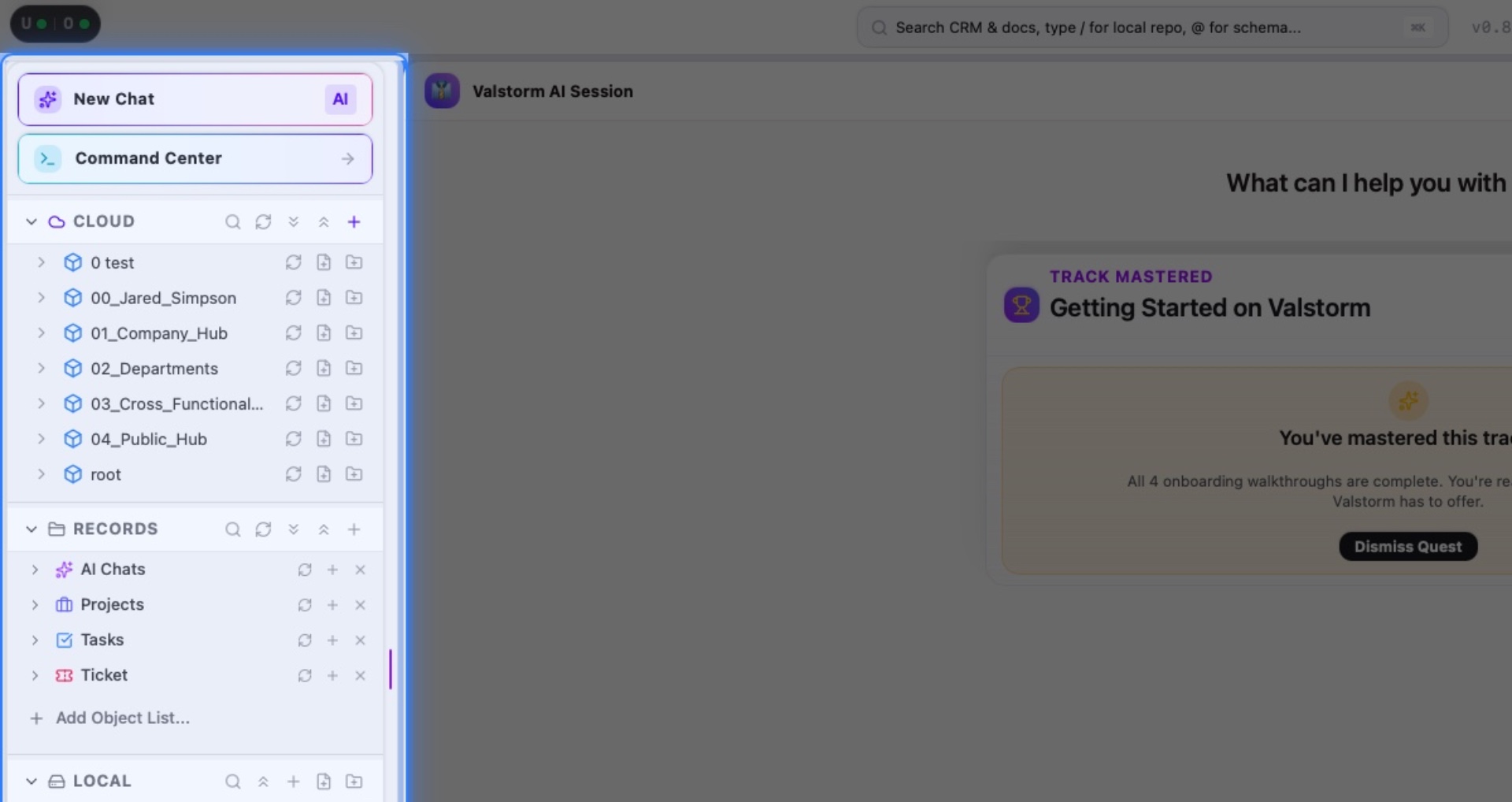
Interactive Target:
#left-navigation-panel
2. Valstorm File System (VFS)
The VFS houses all your companies' files, SOPs, and documentation. Store anything here like pdfs, documents, and spreadsheets.
Valstorm's AI can use this information for context.
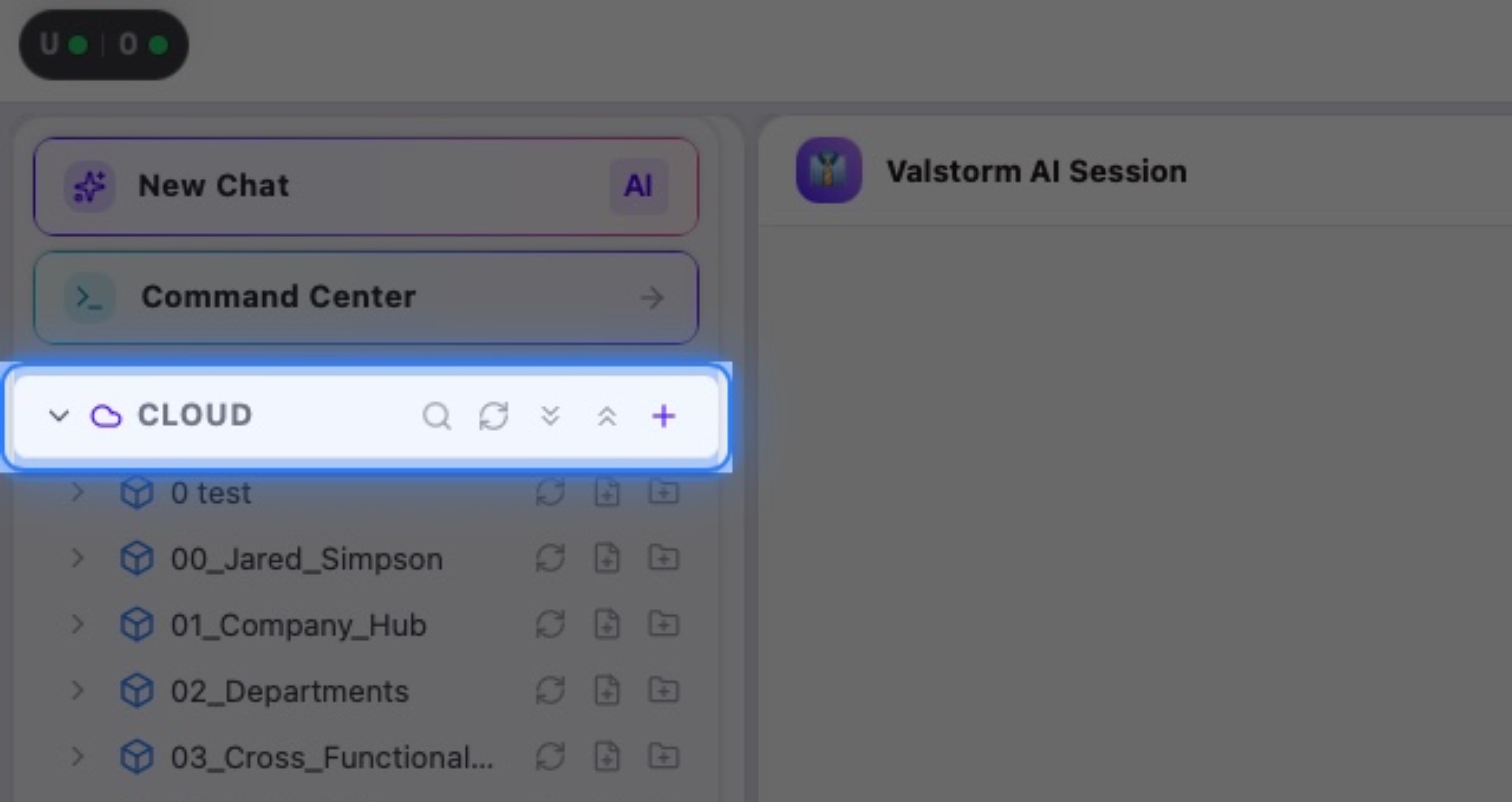
Interactive Target:
#left-nav-cloud-section-header
3. Database Records
Manage structured database records across your CRM, project management and custom business objects.
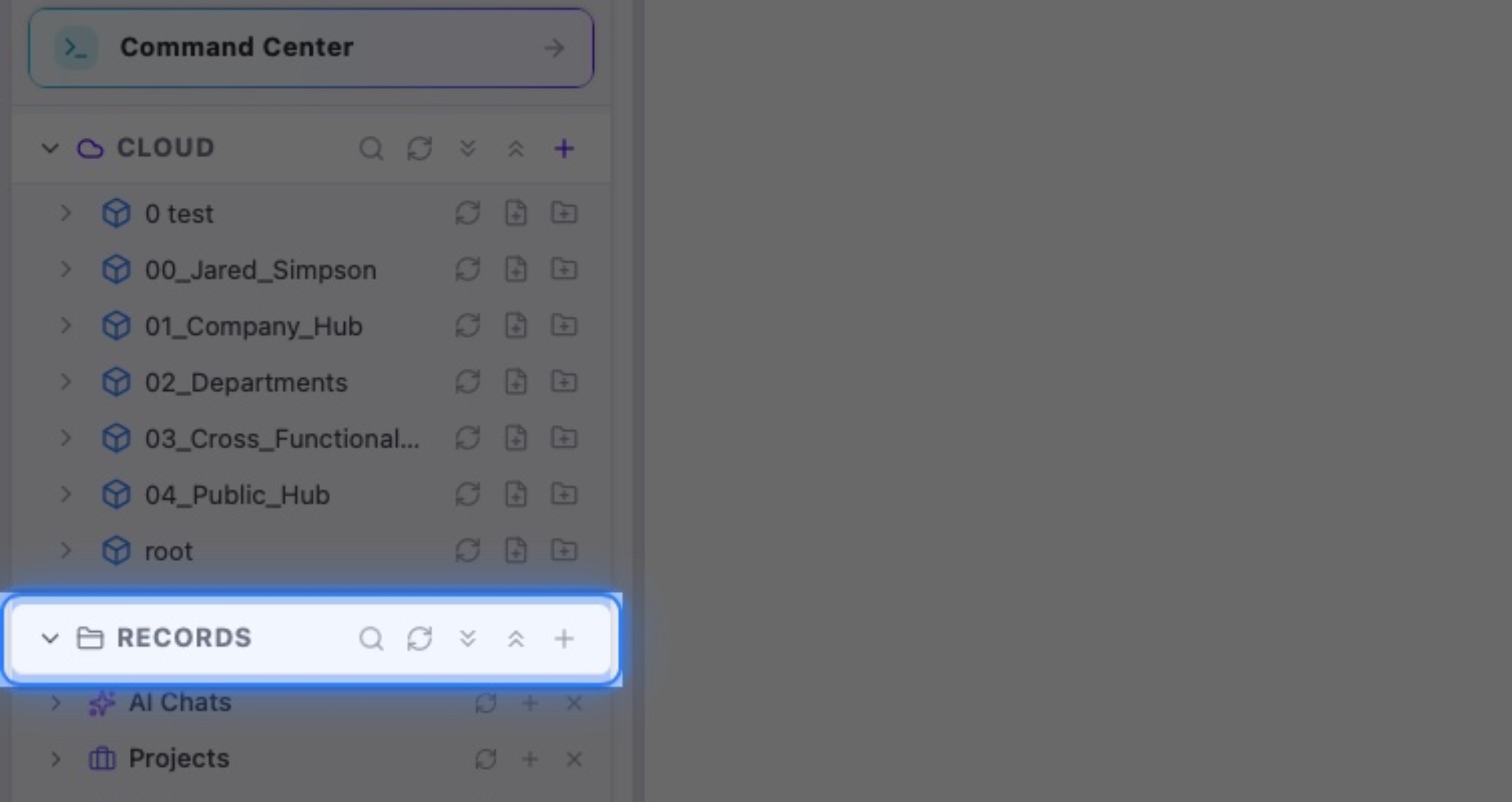
Interactive Target:
#left-nav-records-section-header
4. Top Navigation Bar
The top navigation bar provides global search, user profile settings, and quick-toggle controls for your panels.
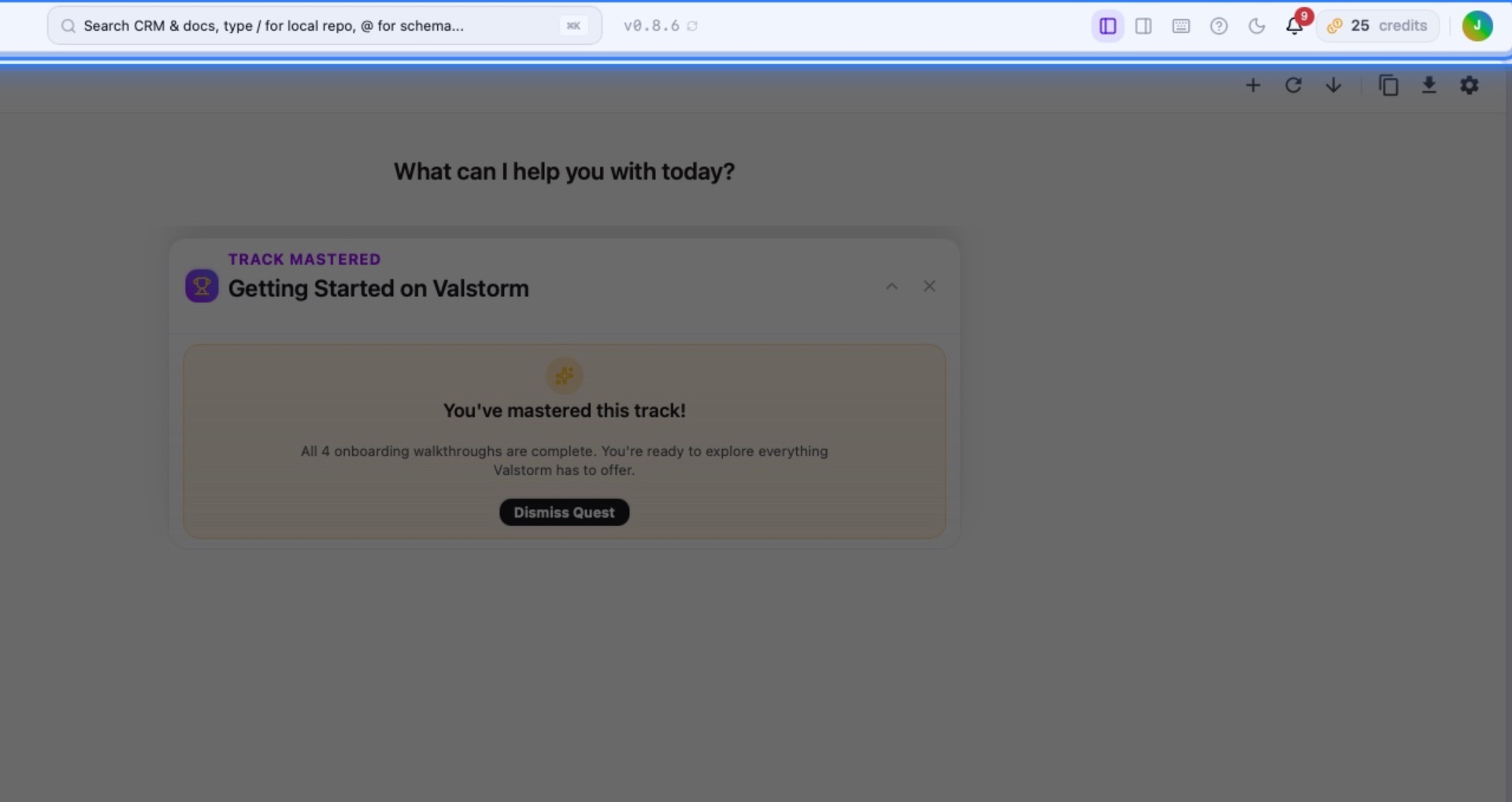
Interactive Target:
#top-navigation-navbar-container
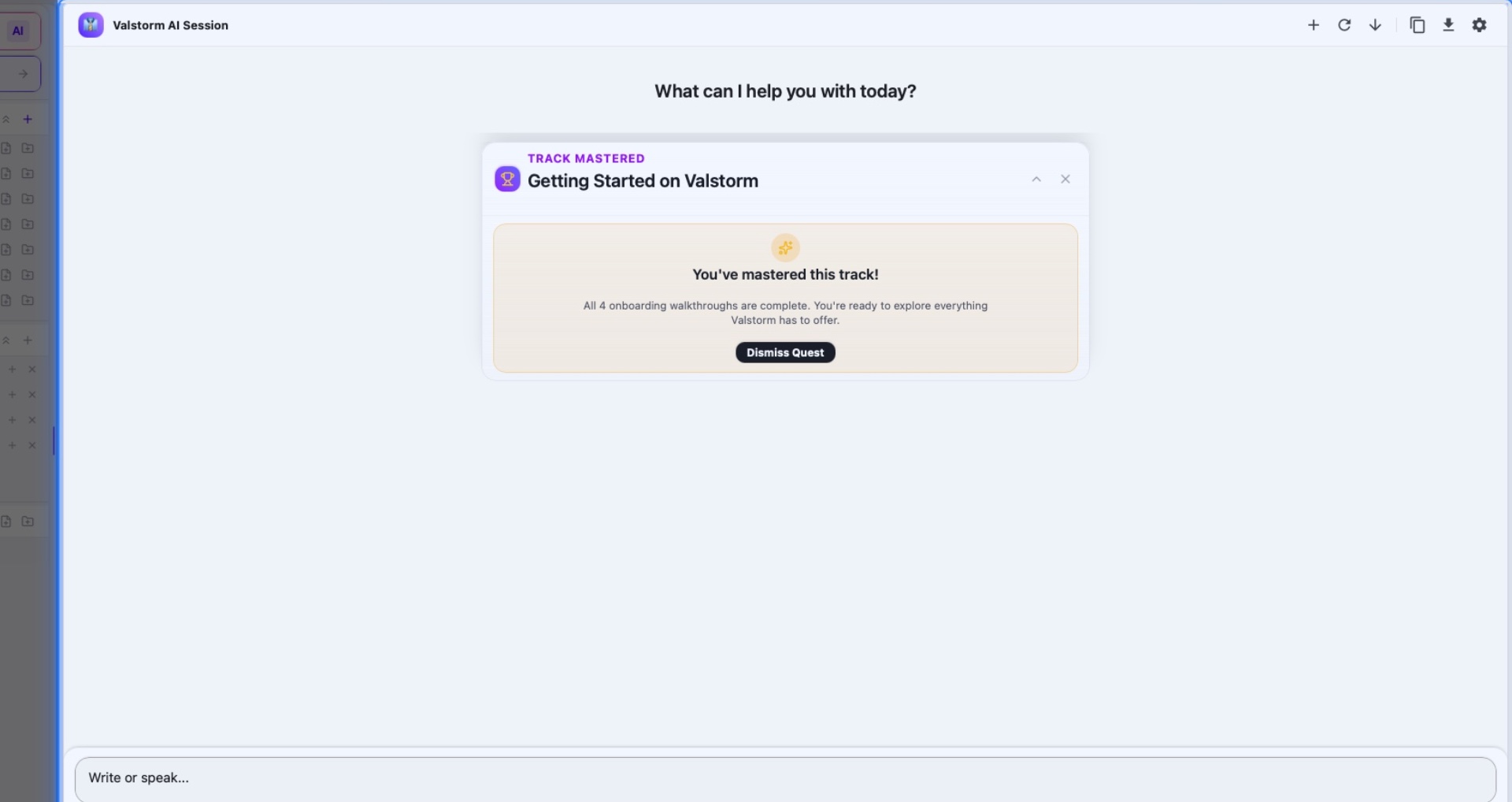
5. Main Content Area
Your primary work area. AI chat sessions, documents, data tables, and everything else happens here.
Interactive Target:
#main-workspace-content
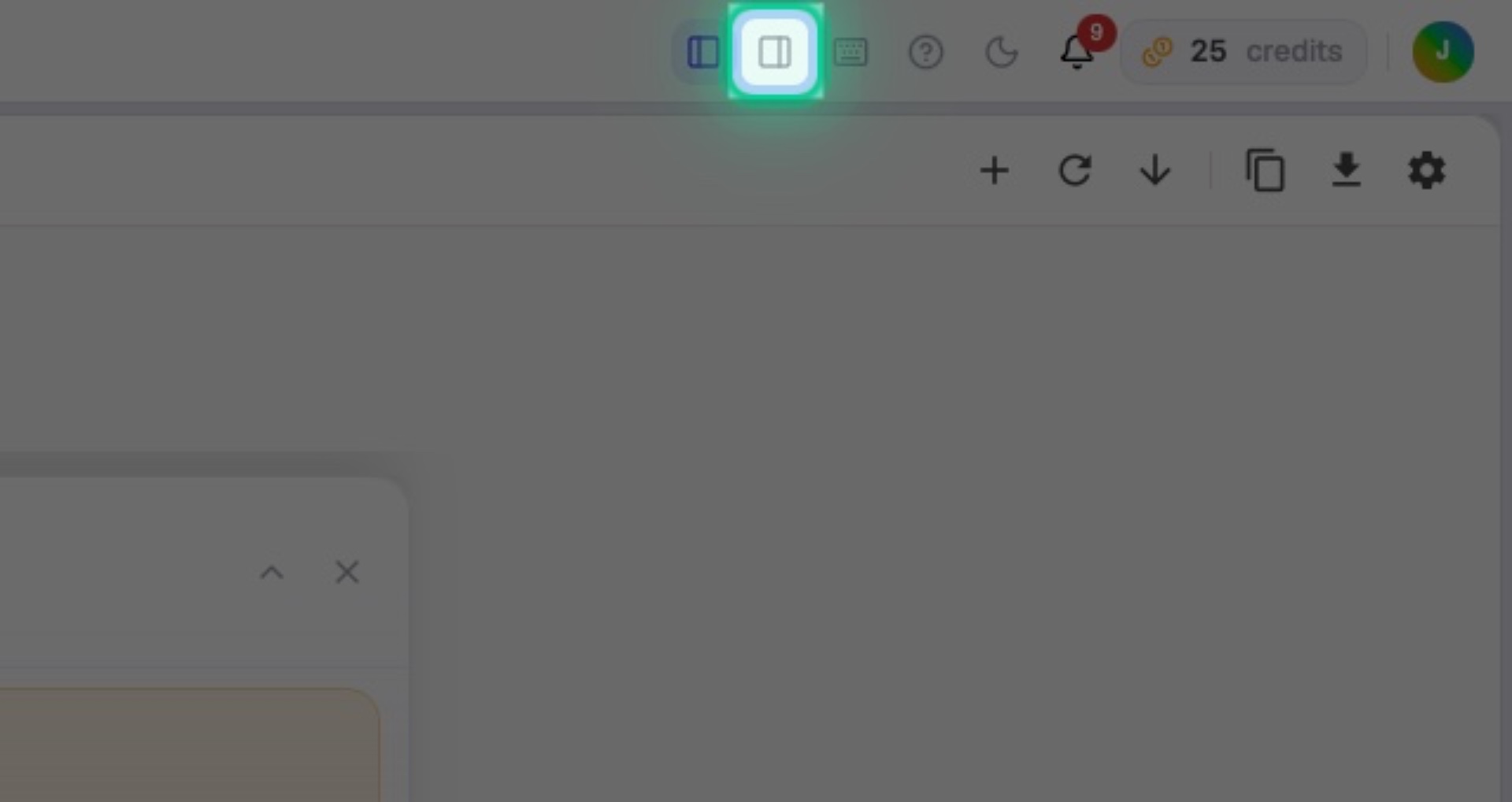
6. Click the Right Panel
Interactive Target:
#top-nav-right-panel-toggle-btn
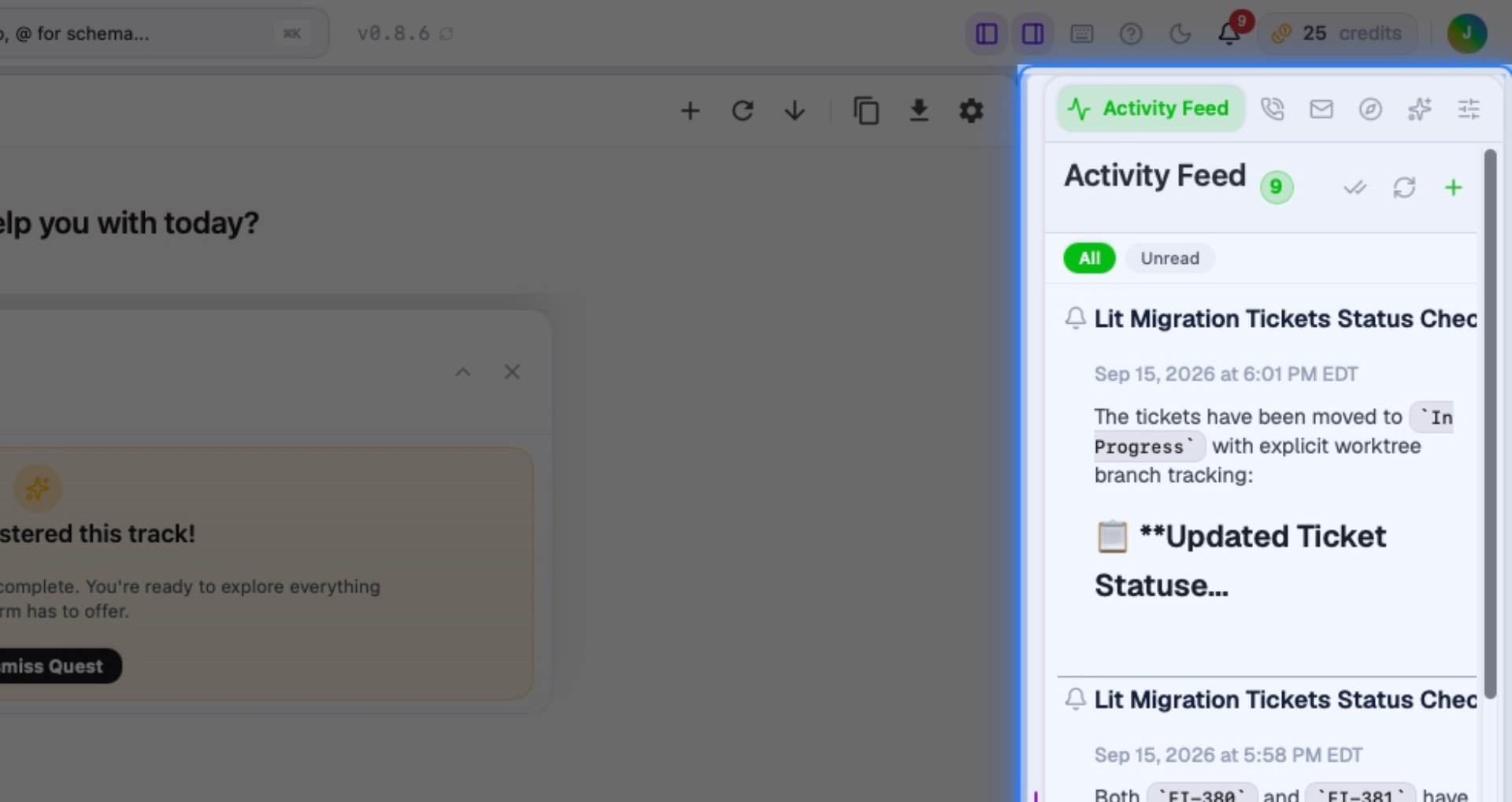
7. Right Panel
Keep secondary tools close at hand without losing focus on your main workspace. You can quickly toggle this panel at any time.
Interactive Target:
#right-utility-panel
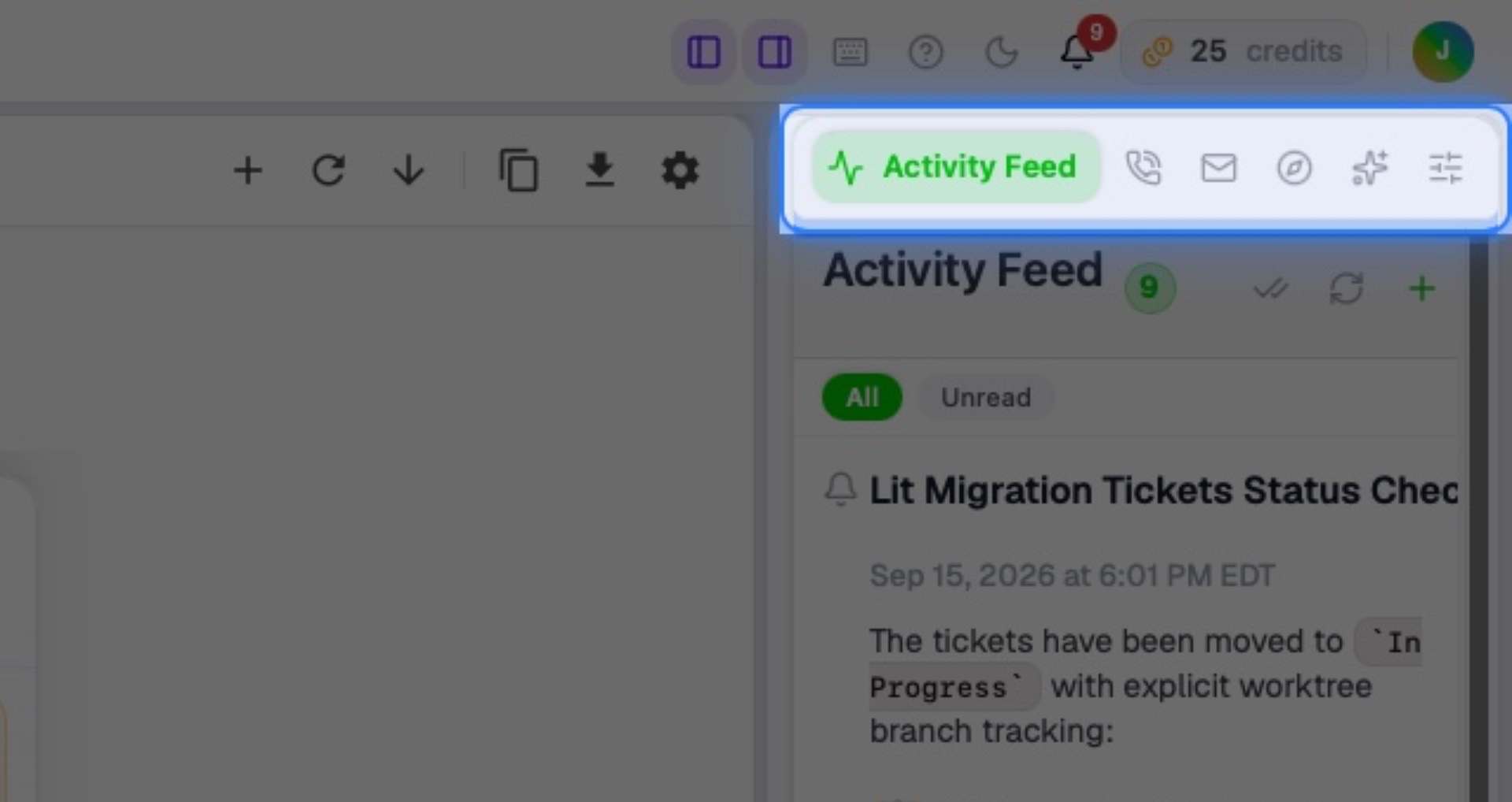
8. Tabs
The tabs to check all the features are managed here. Explore them later.
Interactive Target:
#right-utility-panel-utility-header
9. Click to Learn Shortcuts
Click on Command Palette to proceed.
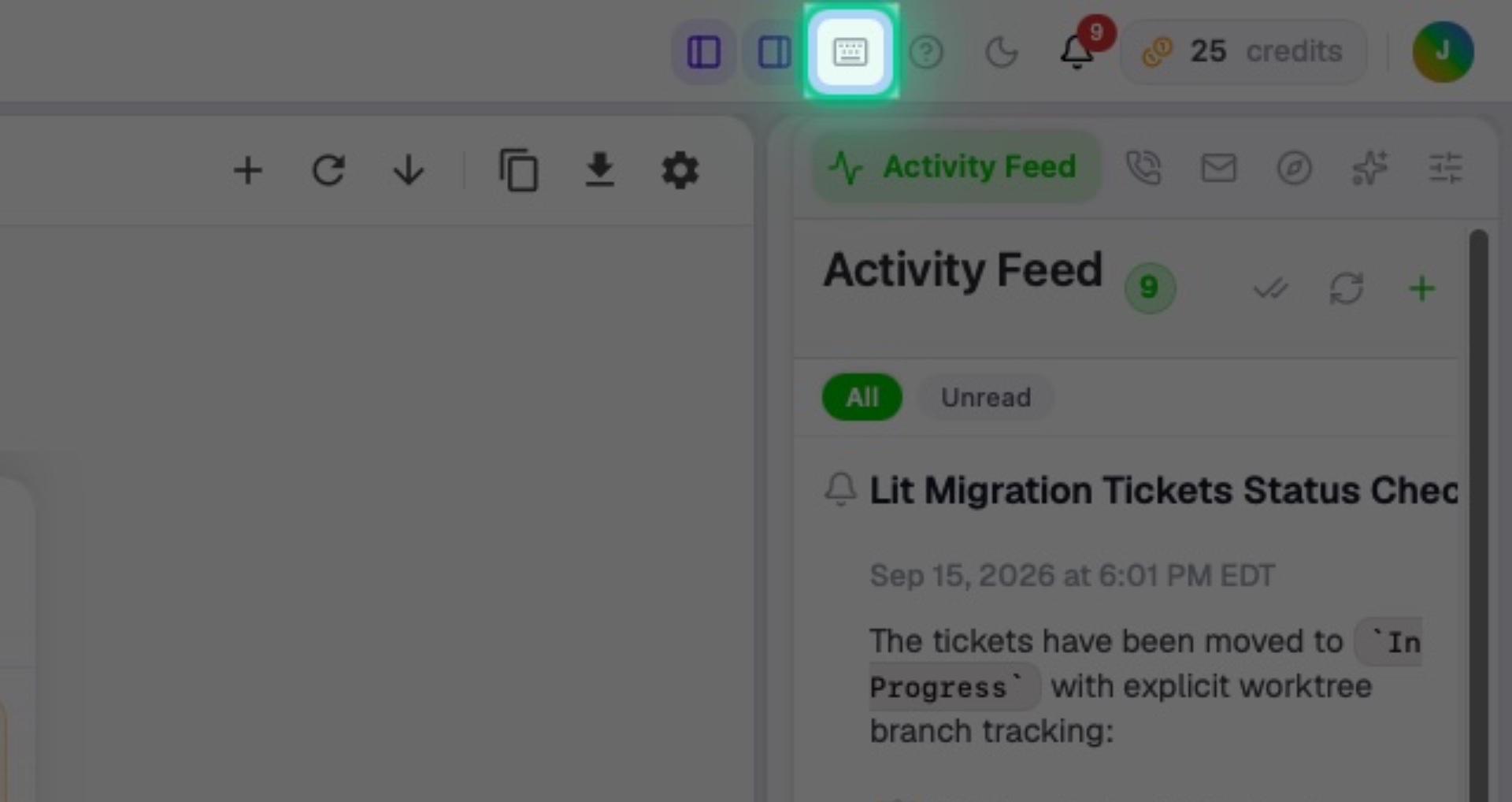
Interactive Target:
#top-navigation-command-palette-btn
10. Learn Shortcuts
This shows the commands you can run to save time using your keyboard instead of clicking. You can save days by learning these!
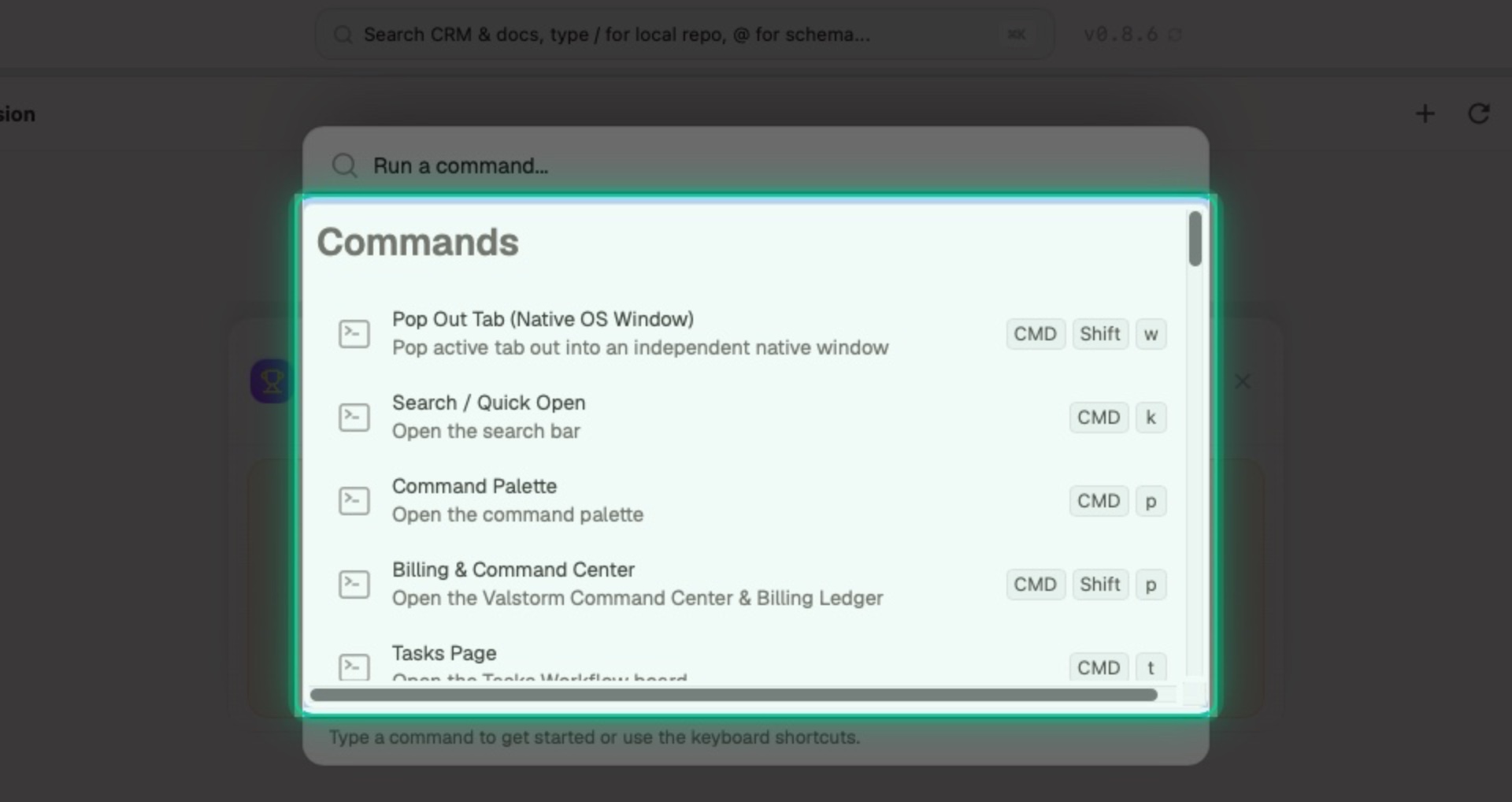
Interactive Target:
#command-palette-options
Summary & Next Steps
You now know the core layout of Valstorm! Use these navigation landmarks to seamlessly switch between documents, records, and AI tools.
🧭 Interactive Walkthrough: Click ▶ Launch Interactive Guide: Navigating Your Workspace to start this hands-on tour directly in Valstorm.