
File Management
name: "File Management" slug: "file-management" category: "01_Getting_Started" section: "Core Concepts" version: "1.0.0" sort_order: 1 description: "Get started with File Management in under 5 minutes. Learn how to navigate your workspace and manage features." seo_title: "File Management | Valstorm Docs" seo_description: "Get started with File Management in under 5 minutes. Learn how to navigate your workspace and manage features." is_published: true is_public: true icon: "Rocket" published_date: "2026-09-15T20:55:26.026Z" modified_date: "2026-09-15T20:55:26.026Z" guide_id: "gui_XirtaE622BS8ol2a"
File Management
Step-by-Step Guide
1. Click New Cloud Vault
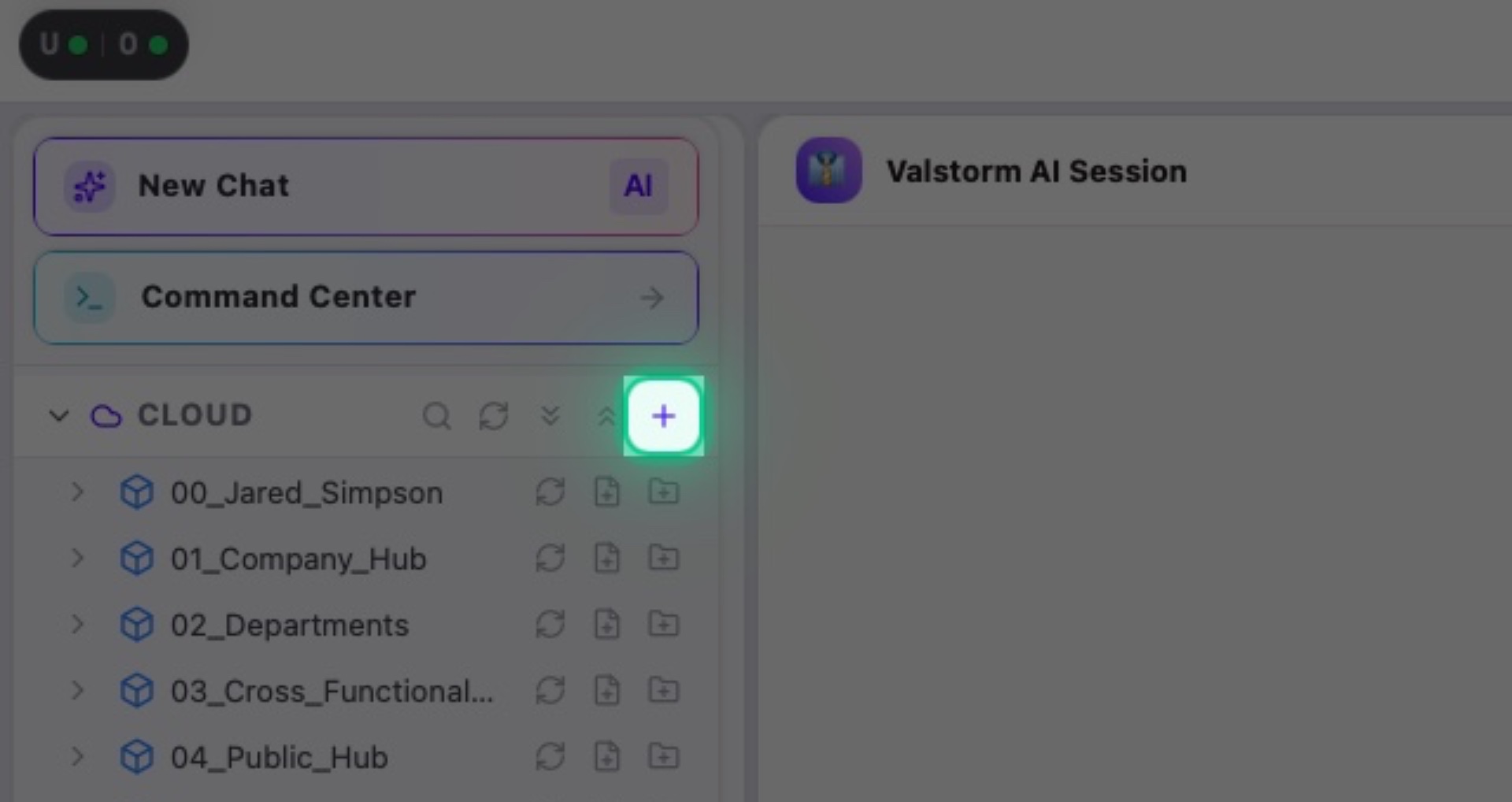
Interactive Target:
#left-nav-cloud-add-vault-btn
2. Press Enter
Name the vault "0 test" then press Enter/Return
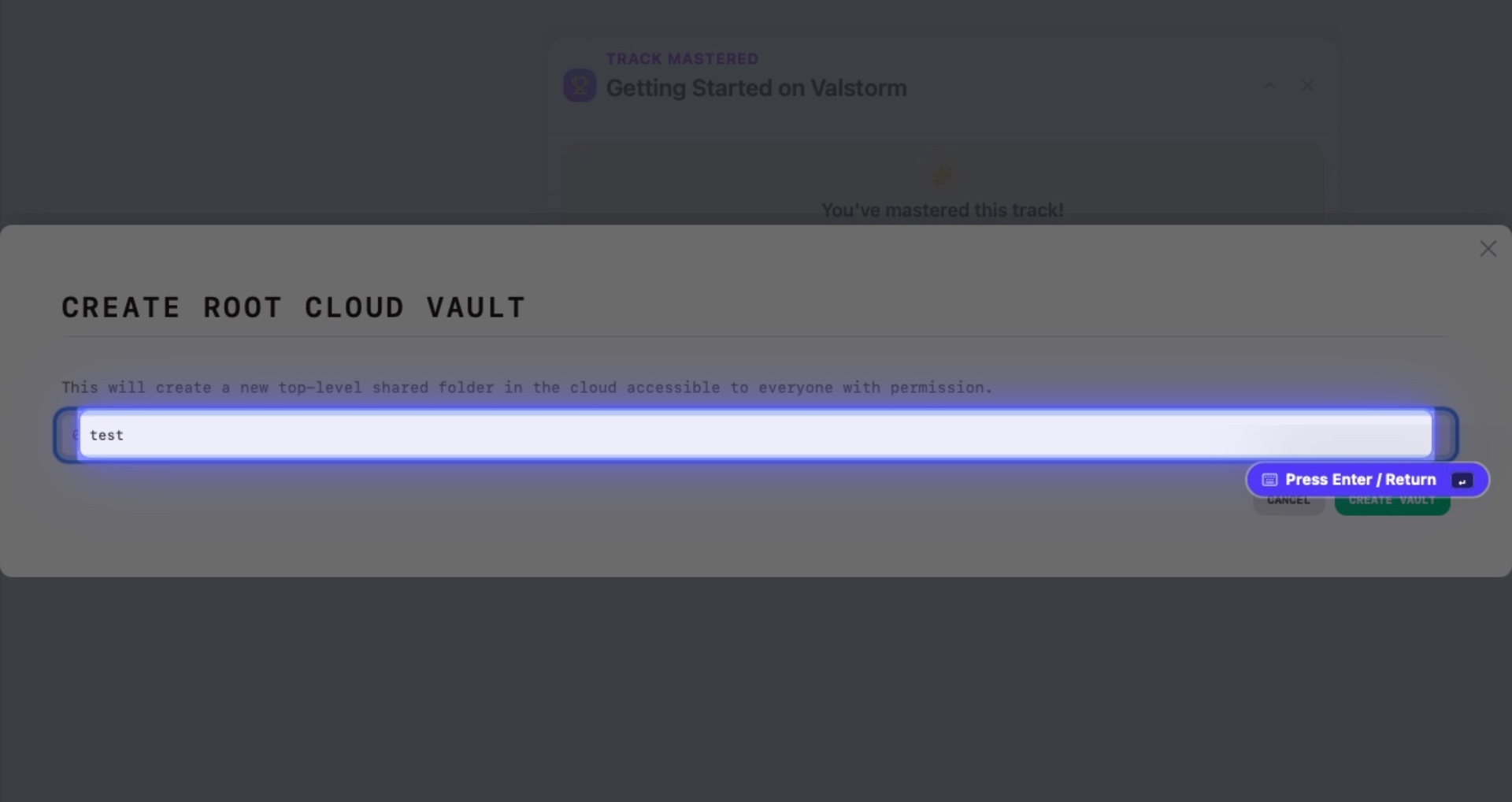
Interactive Target:
#modal-create-vault-name-input
3. Create a New File
Click on New File to proceed.
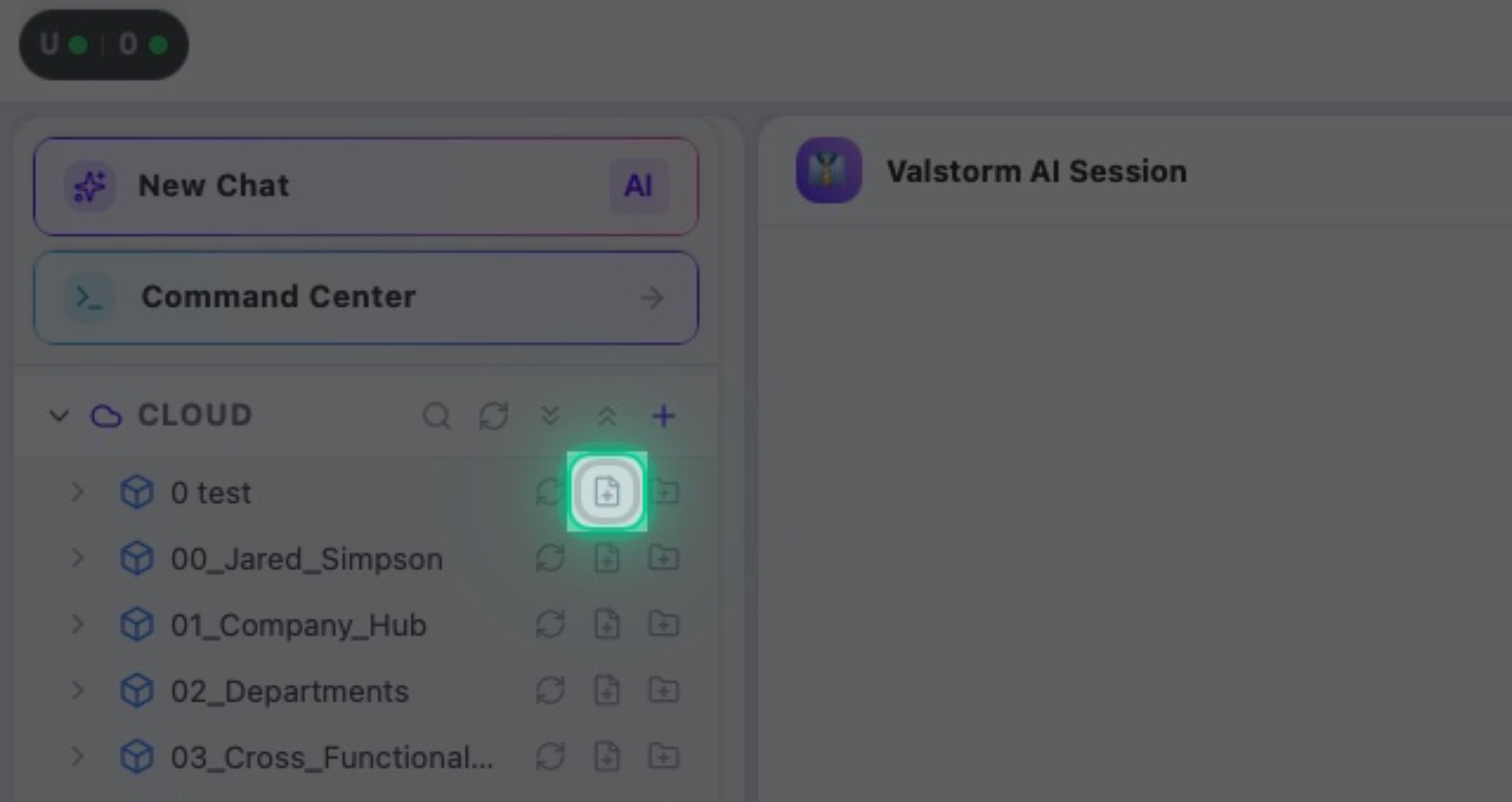
Interactive Target:
#cloud-vault-root-0-add-file-btn
4. Name the File
Give the file and name then hit Enter/Return
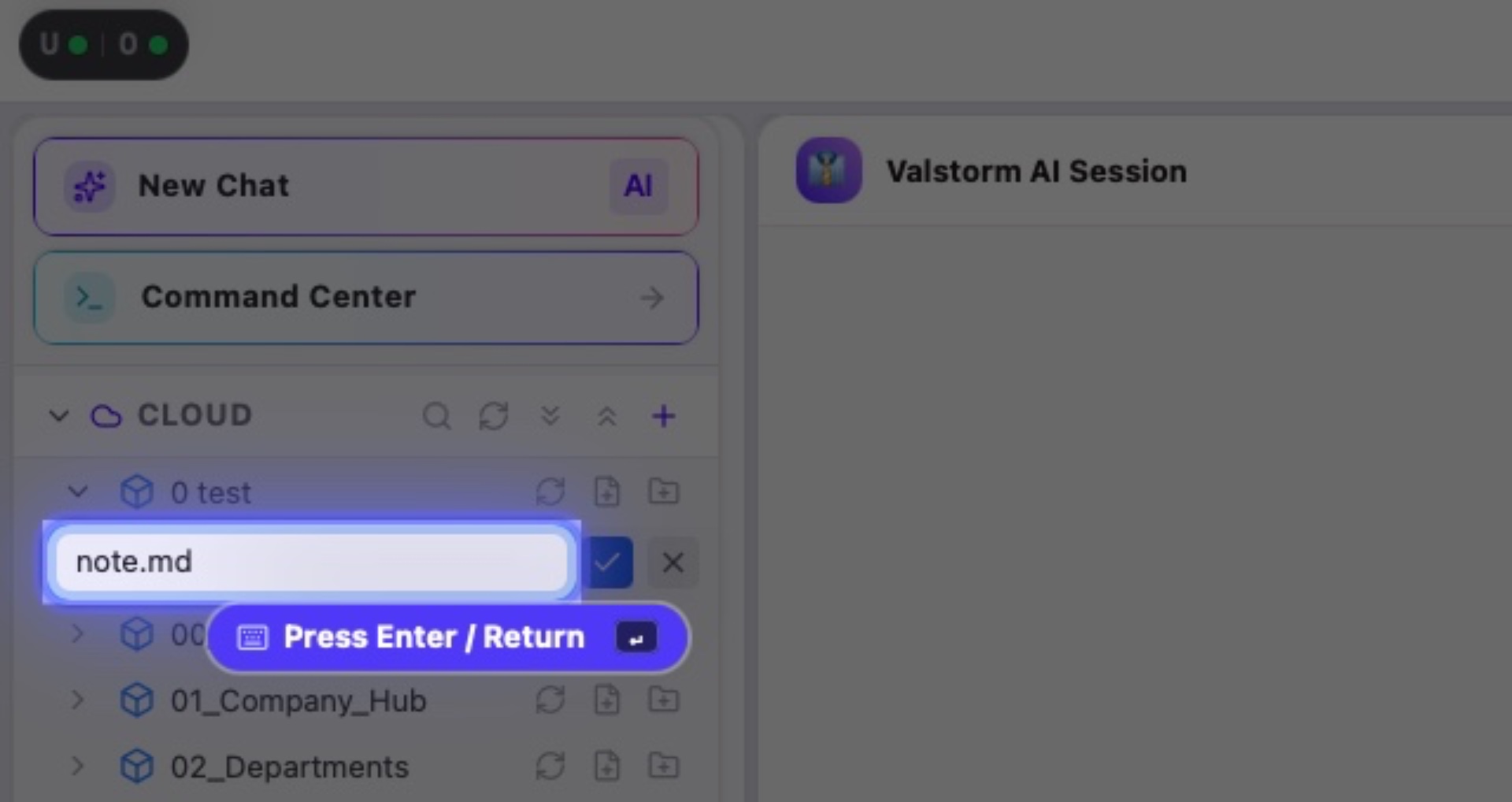
Interactive Target:
#file-tree-inline-creation-input
5. Editting a File
You can write anything you like in the file editor. Use it for notes, standard operating procedures, documentation, or anything really!

Interactive Target:
#workspace-pane-1-content
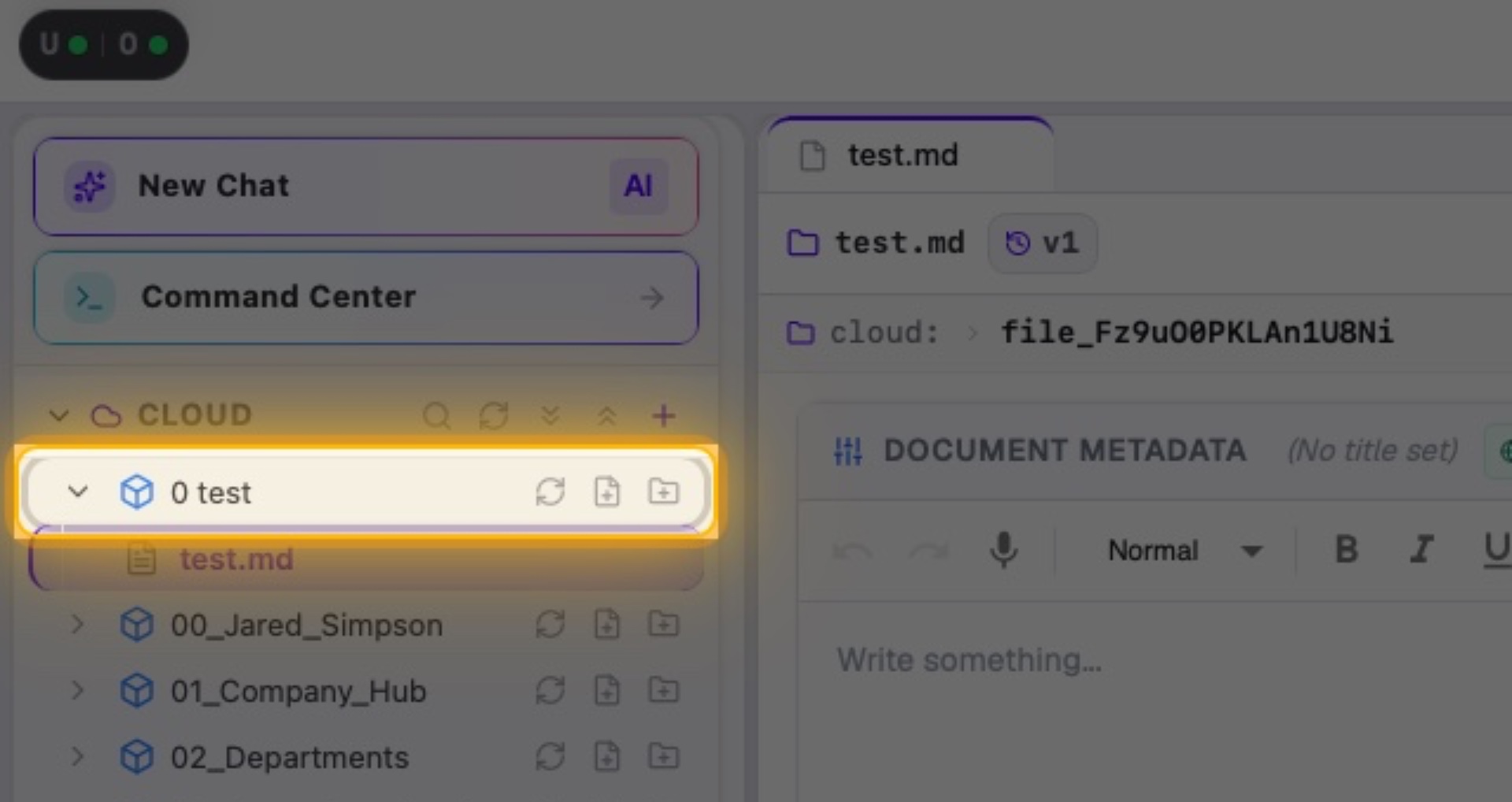
6. Right-Click 0 test
Right-click on 0 test to open the menu.
Interactive Target:
#cloud-vault-root-0
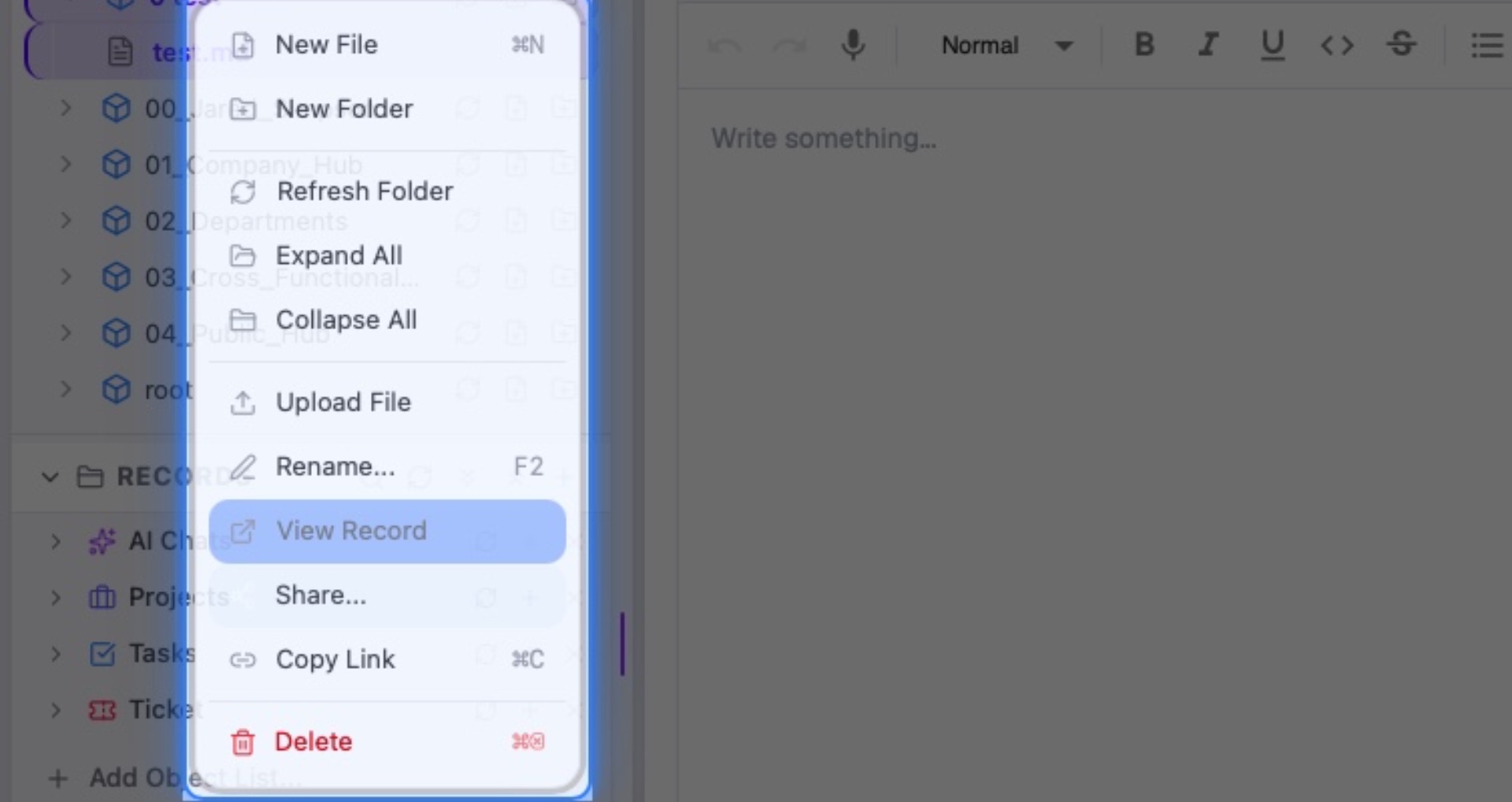
7. The VFS Context Menu
Right clicking a vault or a file will bring up the menu with many different options that you can explore later.
Click "Next" to Proceed
Interactive Target:
#file-tree-context-menu
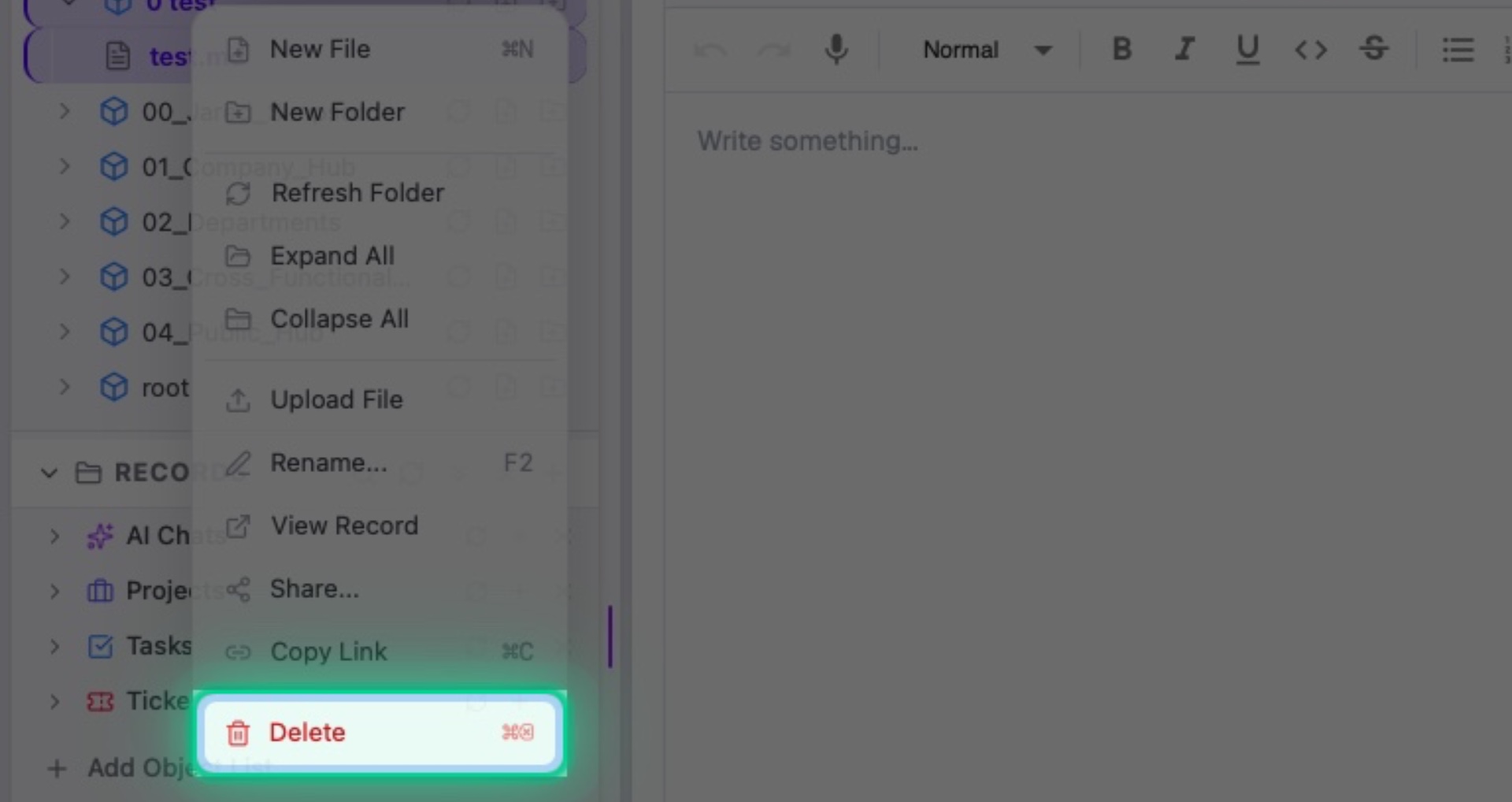
8. Click Delete
Click Delete to try to delete the vault
Interactive Target:
#file-tree-context-menu-delete-btn
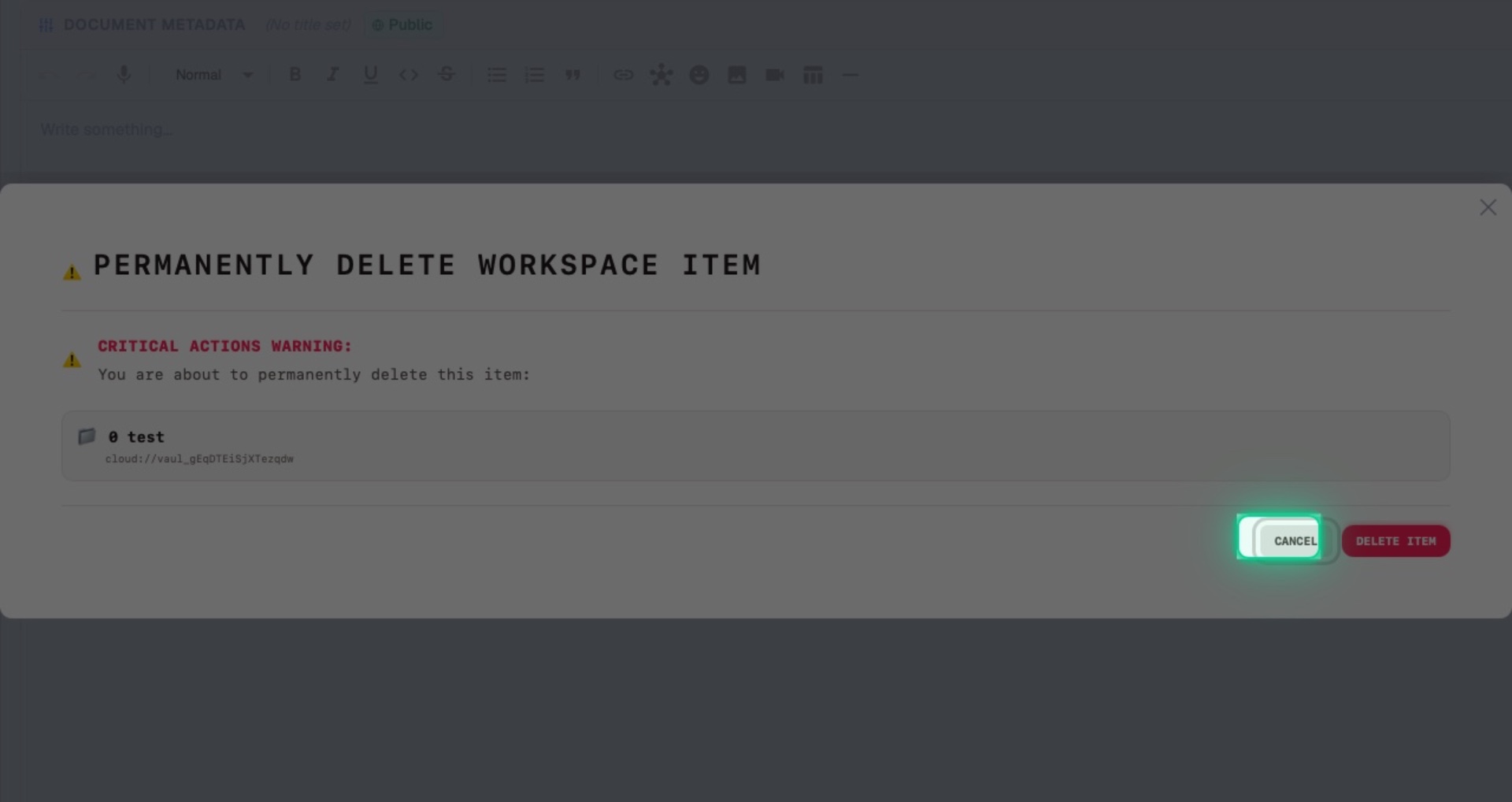
9. Confirm
Click on CANCEL for now. You can delete this later if you'd like
Interactive Target:
#modal-delete-confirm-cancel-btn
🧭 Interactive Walkthrough: Click ▶ Launch Interactive Guide: File Management to start this hands-on tour directly in Valstorm.